Production Scheduling, Production Instructions & Production Files
Schedule Your Production
On the Factory Floor plan with the Scheduling module, Phasio can now plan your production for you. You describe your resources, such as a machine, a person or a station, under Settings in Scheduling, with their capacity, build volume and open hours, and give each operation a duration and the resources it uses. The new Schedule page under Production then lays every work order out on a timeline, shows when each one finishes, and flags any operation that does not fit in the plan. On its Work orders tab you can try a different due date or priority and see the effect on the plan before you apply it. While you quote, an If accepted now panel on the new order screen and when editing a quote shows the day the parts would be ready and any other work that would slip.
Production Instructions on Part Specifications
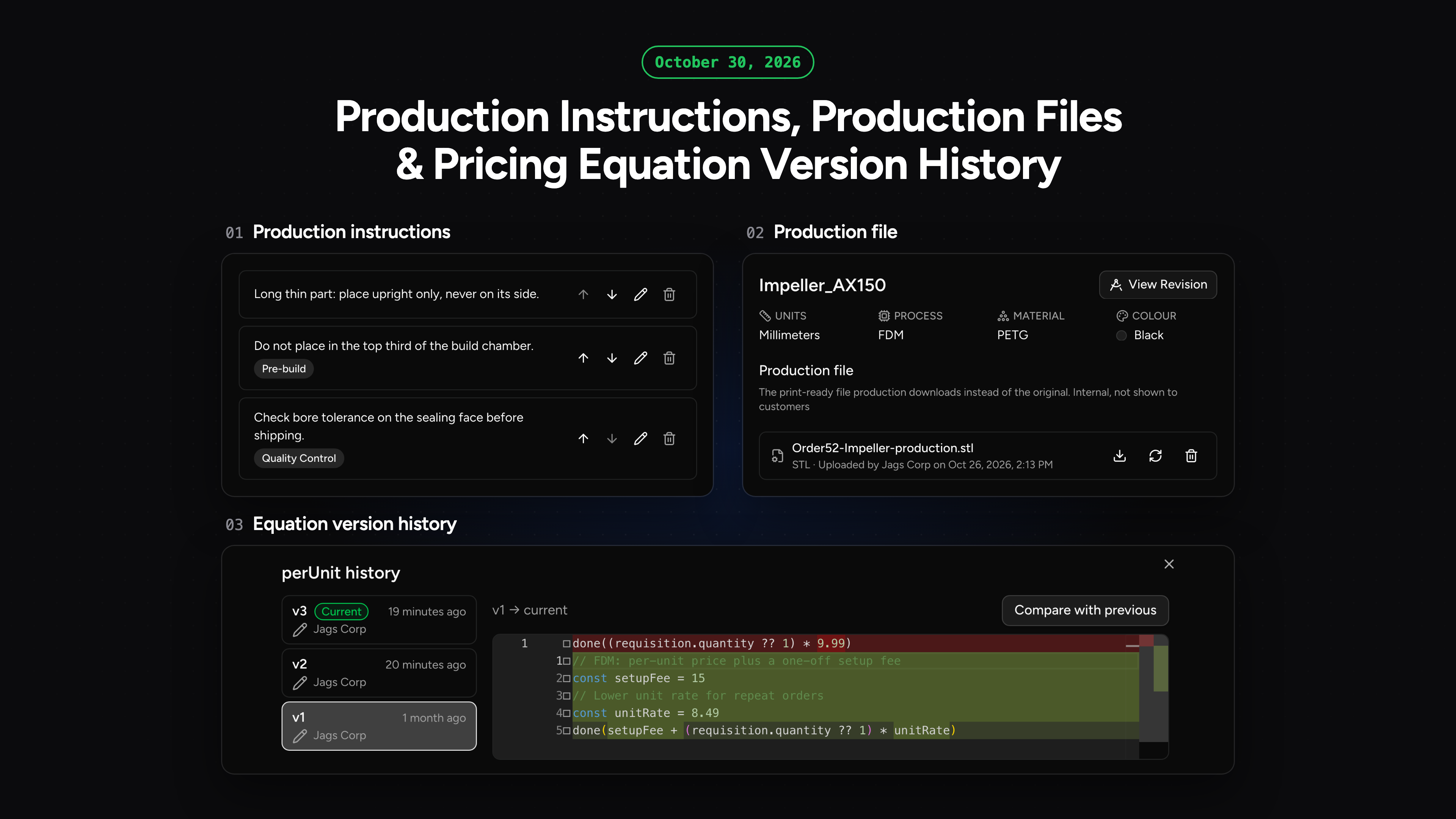
On the Factory Floor plan, you can now write production instructions on a part specification, either for every operation or for one operation, so a repeat order arrives with its setup notes already attached. The instructions show in planning and on the build screen next to the parts they belong to, with other operations' instructions folded away. Traveller templates can print them too, and they never appear on customer documents.
Production Files
Each part specification can now hold a production file, such as a print-ready file, alongside the customer's original CAD. You can upload it on the specification, or while quoting on the new quote and new order screens, and parts that have one show a Production file icon on order rows and in the planning backlog. ZIP and CAMSPEC downloads use the production file when there is one and fall back to the original CAD for the other parts.
Quotes Keep the Price They Were Sent At
Each line on a quote now keeps the price it was quoted at, along with the pricing equation version, material price and settings that priced it, so editing an equation or a material price no longer moves quotes your customers already hold. A line priced on something that has since changed shows an Older pricing marker, and hovering it shows what changed, such as v3 of an equation when the latest is v5. To move a quote onto your latest pricing, edit it and choose Update to latest pricing on a line or Update all to latest pricing, and the running total shows the new prices before you save. Quotes already open when this release goes out keep that day's pricing equation and material prices, while their other settings follow your latest pricing. Of those, a quote with an assembly follows your latest pricing for everything.
Pricing Equation Version History
Pricing equations now keep a version history, so an edit you regret is never lost. Each time you save a change to an equation, Phasio adds it as a new numbered version, whether you saved it in the editor or your AI assistant published it. Click History next to an equation under Settings in Processes, Post-processing or Payments to see every version and who saved it, compare a version side by side with the one before it or with the current equation, and choose Mark as latest to restore it as a new version. Quotes keep the equation version that priced them, so restoring or editing an equation never moves a quote you have already sent.
Keep Me Signed In
The Phasio sign-in screen now has a Keep me signed in option. With it ticked, your team stays signed in for up to 30 days instead of being signed out part way through a quote or an order. Customers signing in to your storefront get the same choice with a Remember me option.
What to Check After This Release
- API integrations. See API changes in the 31 October 2026 release for what to update, with a prompt you can give your AI assistant.
- Totals now round to the cent. The Round price to whole number setting is removed, so a grand total that used to be a whole number can now show cents.
- Open quotes keep today's pricing equation and material prices. Their other settings, such as lead time and infill, still follow your latest pricing, and an open quote with an assembly follows it for everything. Edit a quote and choose Update to latest pricing to reprice it.
- Set your account time zone under Settings in Workspace General. Until you do, each browser's own time zone is used for work order, discount and material price dates.
- Review your customer emails under Settings in Workspace General: Send customer notifications from Phasio, and Email invoices to the billing address.
- IntegrationUnder Settings in Accounting, the customer linking tables now have a search box and a link status filter, and Phasio now warns you when an order edit could not be sent to your accounting system
- IntegrationFixed several accounting sync issues: re-authorising Xero or Bexio no longer deletes their account codes and other settings, an error from your accounting system no longer stops a new customer being created (it is saved and left unlinked), and tax-exempt customers in Weclapp, Xero, QuickBooks, Bexio and Comatic are no longer charged VAT on shipping
- IntegrationFixed several QuickBooks issues: an order status automation no longer creates duplicate invoices, orders paid through Stripe are marked paid, a shipping cost change updates the invoice, and pushing a customer sends the company as the QuickBooks customer with its contacts nested under it, keeping the names and parents your bookkeeper set
- IntegrationFixed several Odoo issues: Odoo Online databases now connect and push quotes and orders, retries no longer create duplicate customers or payments, editing a customer no longer erases the partner's VAT number, and locked sale orders are no longer re-priced