Production Routing & Flexible Work Orders
Production Routing & Flexible Work Orders
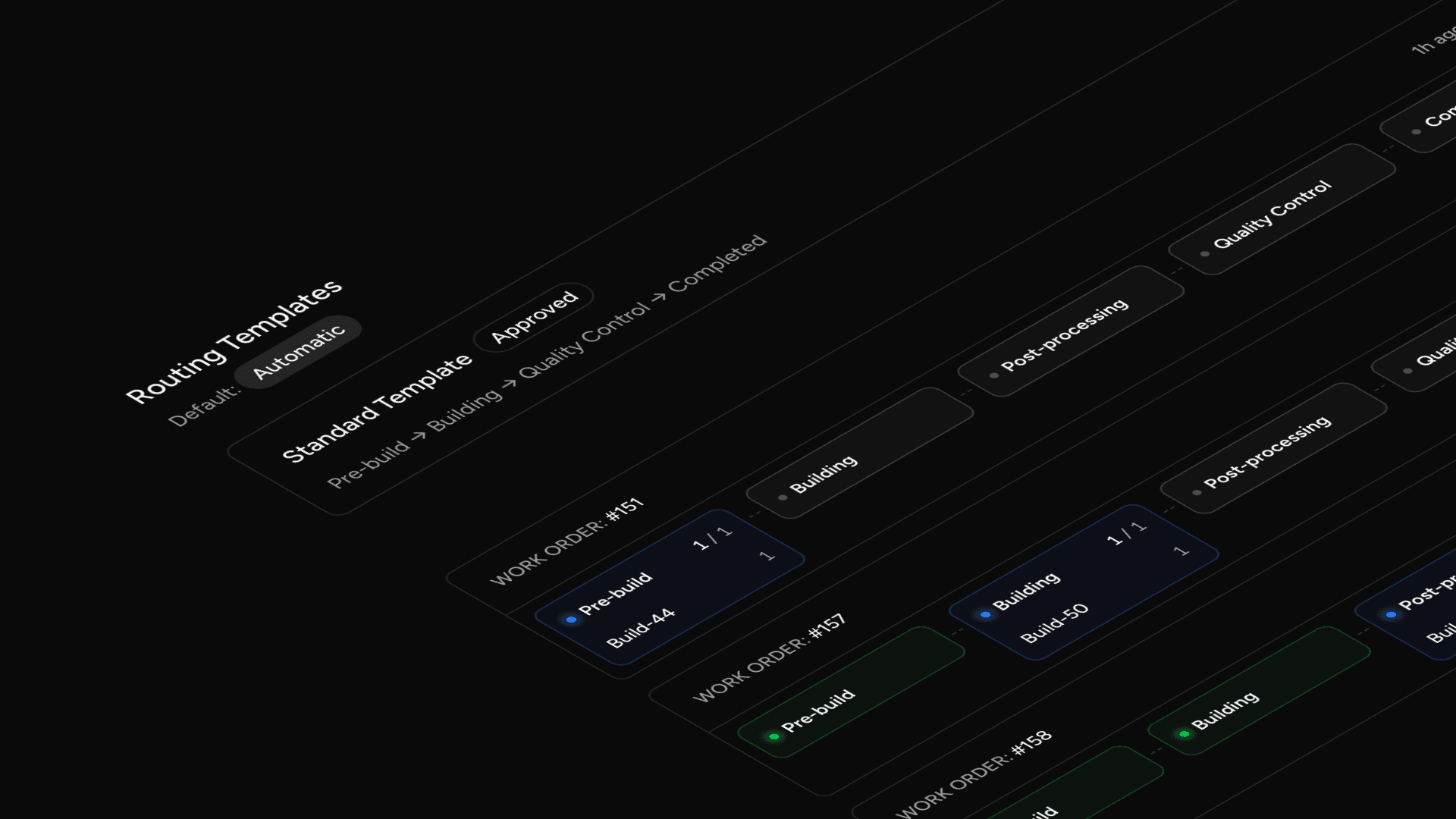
You can now give every part its own path through the shop. Save a reusable, multi-step routing on a part specification, then reuse it across orders. Each routing can be created, edited, approved, set as the default, and retired or replaced when your process changes.
You can split an order's production into several independent work orders, and adjust the routing on each one even after it has started. The build screen has been redesigned to match: mark parts as progressed or scrapped, upload nesting files, and arrange routing steps with drag-and-drop lanes.
A cleaner Part Specification & a new settings area
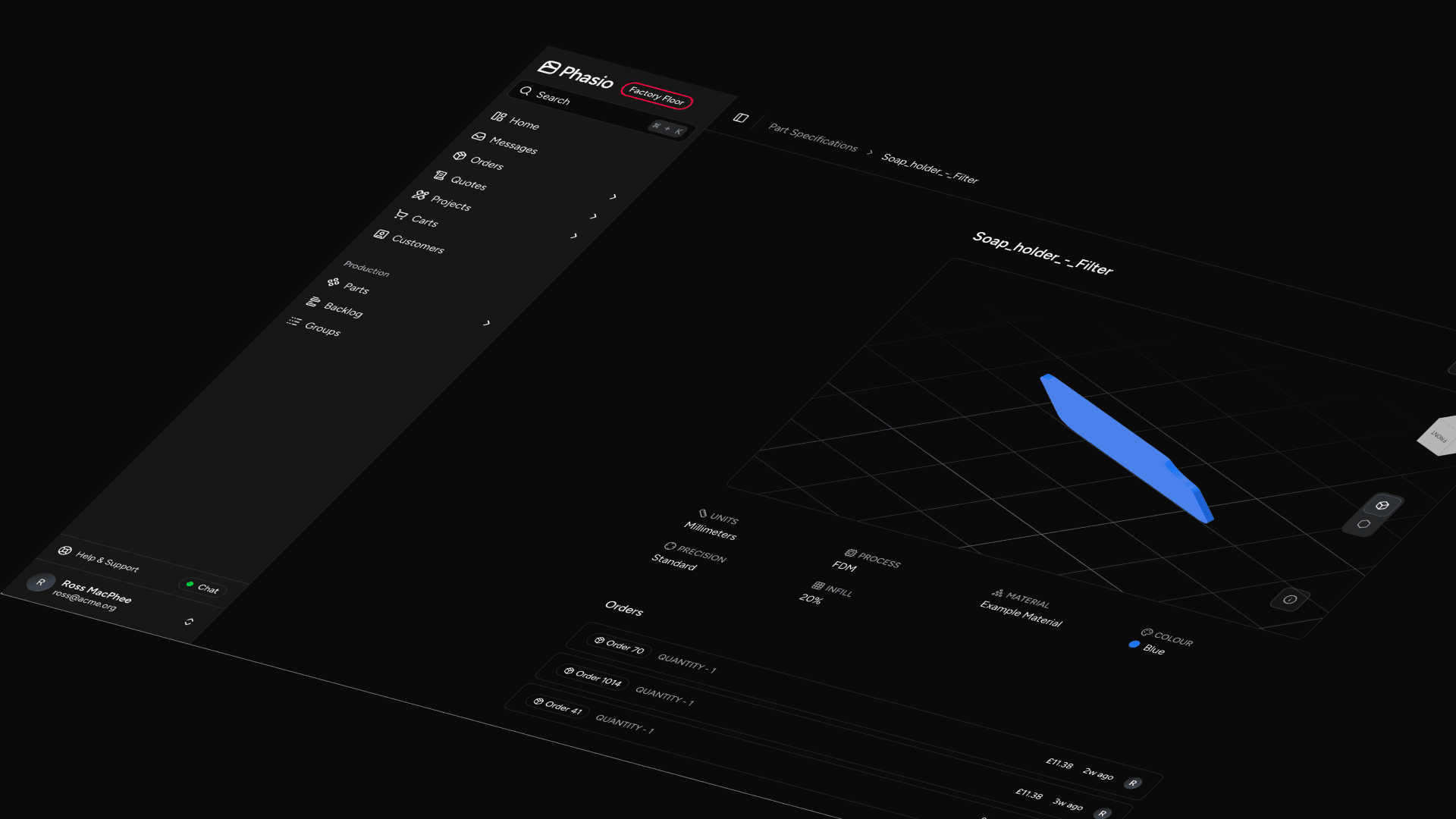
The part specification screen has been redesigned, so the model viewer, process, material, precision, and the orders and customers tied to a part are all easy to read at a glance. All of your organisation, finance, and production settings now live in one place too: a new Settings entry in the menu opens a dedicated area with its own navigation, so they are no longer scattered across the app.
Turn Off Automatic Mesh Repair
A new storefront setting lets you skip the automatic mesh repair step on uploaded CAD files. If your shop already supplies clean geometry, analysis runs faster and leaves your files untouched.
Order Emails Now Follow Your Automations
Order confirmation and order-status-update emails are now controlled by the same per-column automations as everything else, instead of separate global on/off toggles. You decide which workflow stages send which emails, so notifications behave consistently across your board.
Move an Order Automatically When Production Starts
You can now add an automation that moves an order into a status of your choice the moment its first work order is created. Your board stays in step with the shop floor without anyone having to drag a card.
You can also right-click any card on the board to create a work order for that order, straight from the kanban.