The build screen
Use the build screen to stage, progress, and trace parts through a single operation on the shop floor.
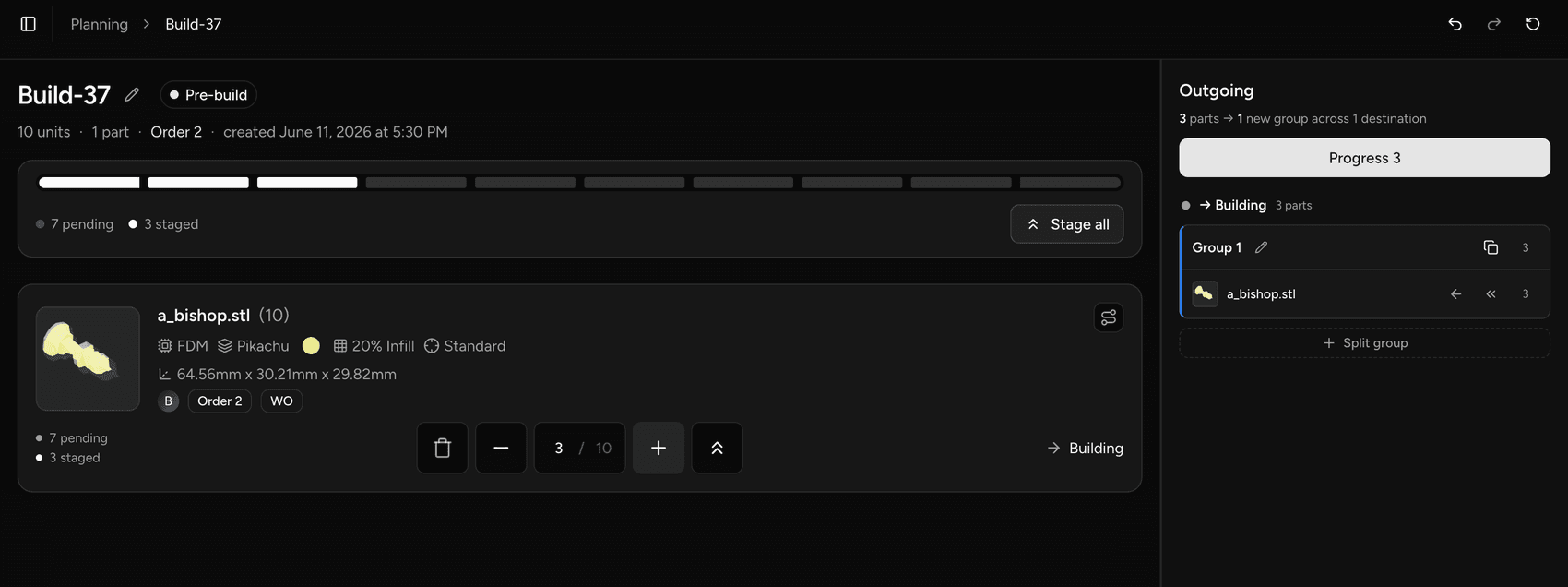
The build screen is the floor-operator's view of a single step in production. Open it to see every part currently at that operation, decide where each unit is headed next, group them into outgoing builds, and commit the move — all without leaving the page.
When to use it
Use the build screen whenever you need to move parts forward from one operation to the next, scrap units with a reason, or review what happened to a part after it moved. It is designed for gloved hands on a tablet — large tap targets, no navigation required mid-task.
You land on the build screen by opening a build from the planning queue.
Layout
The build screen is divided into three areas:
Part Backlog The part backlog lists every unit currently sitting at this operation — units that have arrived here but have not yet been staged for the next move. Each row shows the part, its quantity, and which work order it belongs to. Staging a unit removes it from the backlog; unstaging returns it.
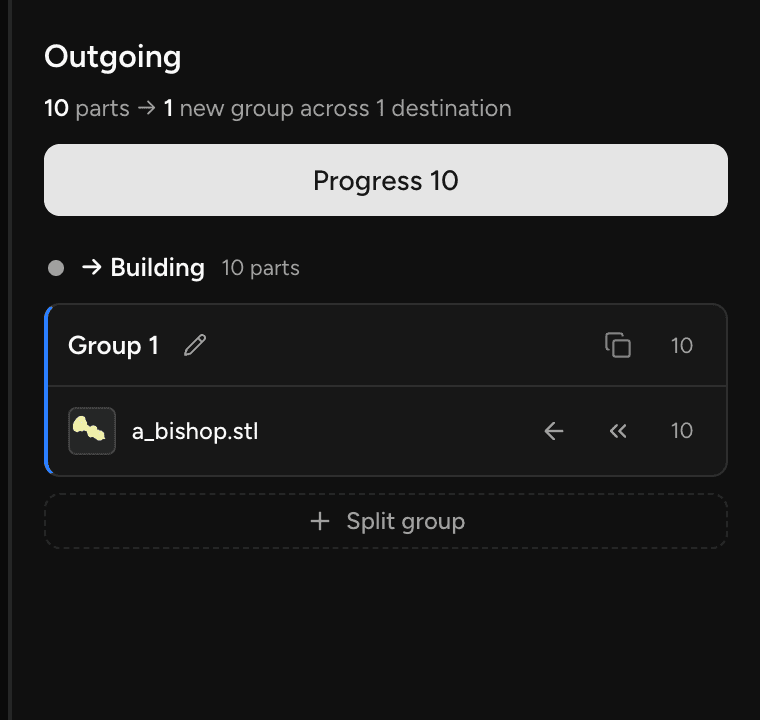
Staging lanes Staging lanes are where you organize outgoing units before committing. Each lane represents one destination operation and holds one or more builds you are forming. When you add units to a lane you can name the build — whether that name carries forward to the next step depends on the destination operation's naming strategy; a partial move or an operation configured to always rename will dissolve the label and mint a fresh one. You can have multiple lanes open at once if units are headed to different next operations, and multiple builds in a single lane if you want to keep groups separate.
Progress
Once you are satisfied with the staging, hit Progress to commit. The move is written to the production ledger and the formed builds appear in place on the screen with a full trace. Units that were scrapped during staging are committed at the same time.
💡 All staging is reversible before you hit Progress. You can move units back to the backlog, adjust build names, or undo earlier changes freely while you are still in the staging area.
How it relates to the Part Backlog
A part's quantity starts at the first operation of its work order the moment the work order is created. The build screen's backlog always reflects the current live balance at that operation — the number of units that have arrived but not yet moved on. When you progress a build, those units leave the backlog of this step and appear in the backlog of the destination step.
Each work order tracks its own balance independently. If the same part has two concurrent work orders, both appear as separate rows in the backlog and are staged and traced separately.
Completed state
A work order's operation is marked complete when all of its units have left that step — either progressed forward or scrapped.
ℹ️ Work orders track completeness per operation. A run is not marked done until units have passed the final operation — partial progress through the routing leaves earlier operations complete while later ones remain open.
Last updated on