Manage routing templates
Create, approve, and manage routing templates on a part specification to control how future production runs are routed through your shop.
A routing template is a saved, reusable sequence of operations for a part specification — the routing a production run follows through your shop.
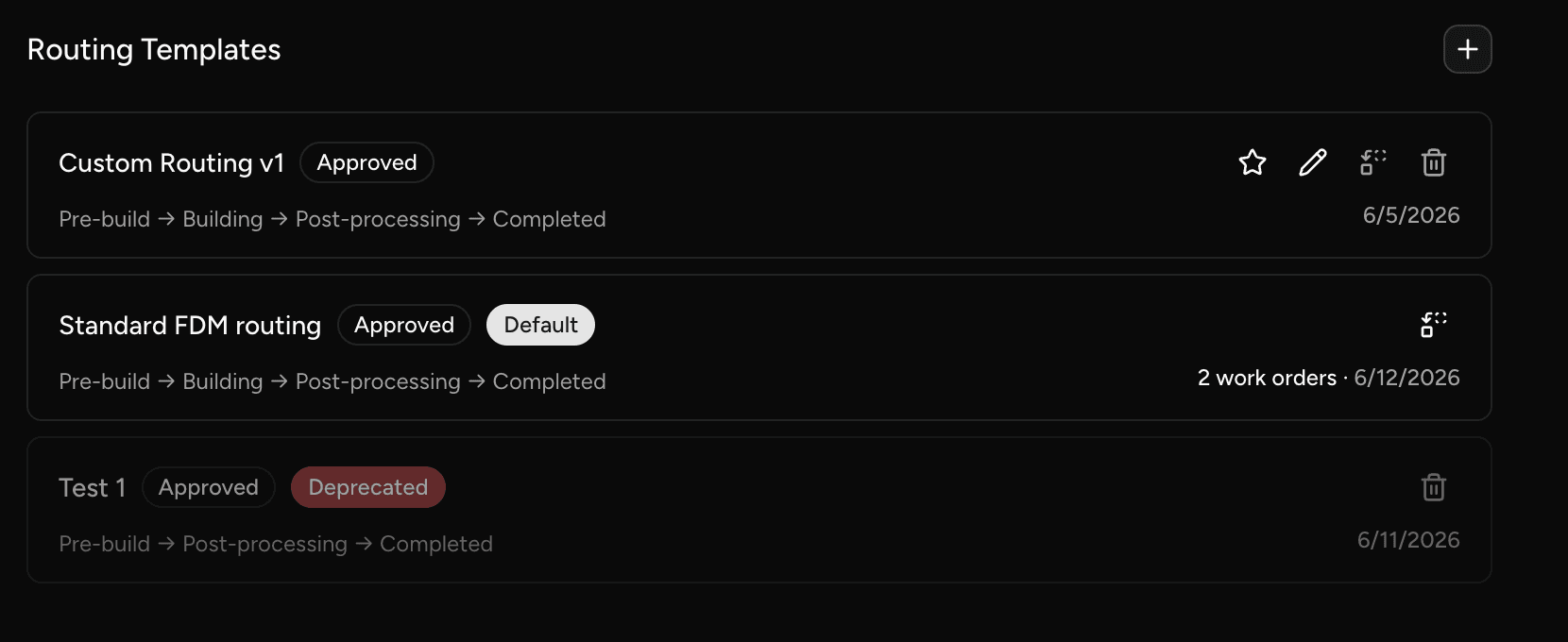
Create a routing template
- Open the part specification and scroll to the routing templates section.
- Add your operations in sequence to define the routing for this part.
- Save the template.
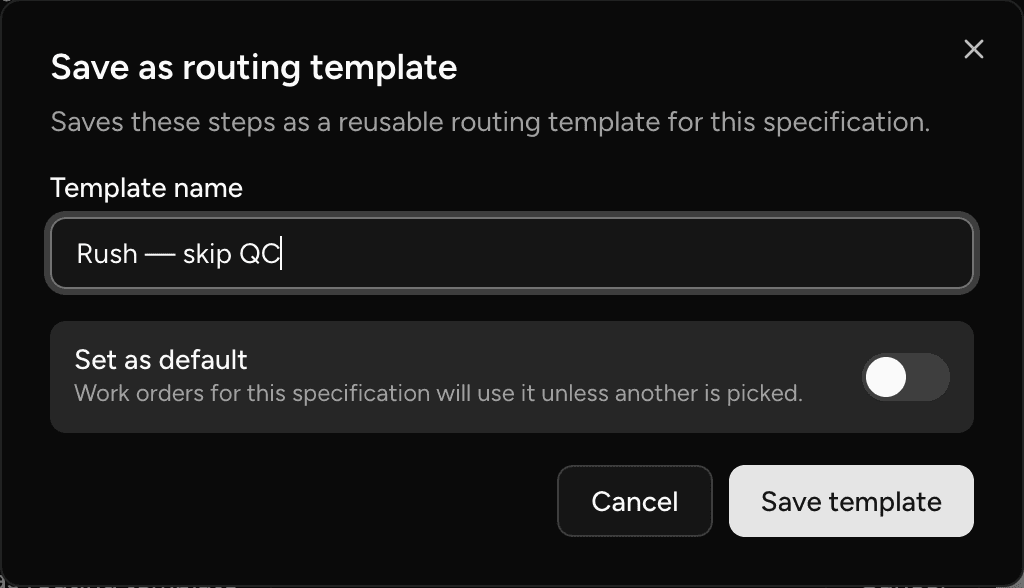
💡 You can also save a routing template from the scheduling dialog. After customizing the operations for a specific work order, use the Save as routing template option to capture that routing for future reuse.
Approve a template
New templates must be approved before they can be designated as the default.
- In the routing templates section, locate the template you want to approve.
- Approve the template.
ℹ️ An optional operator setting can require that parts have an approved routing template before a work order can be scheduled. 👉 Routing template approval
Set the default template
The default template is applied automatically when a new work order is created for the part. Only one template can be the default at a time.
- In the routing templates section, find the approved template you want to use as the default.
- Select the star icon on that template. It becomes the default immediately, and a confirmation toast appears.

Deprecate a template
A template is frozen as soon as any work order has been created from it — edits are rejected. To retire a template and replace it with an updated version:
- Create and approve the new template with your updated operations.
- Set the new template as the default if needed.
- Deprecate the old template.
ℹ️ Existing work orders are unaffected — each run keeps the routing snapshot it was created with.
☝️ Power user tip: if no template is designated as the default, each work order's routing is derived fresh from your current process configuration — changes to the process are picked up automatically by future runs, with no edits to the part spec needed.
Delete a template
You can delete a template that no work order has been created from.
- In the routing templates section, open the options for the template.
- Select Delete and confirm.
⚠️ A template already referenced by a work order can't be deleted — deprecate it instead.
Last updated on
Production Routing overview
Understand how production runs, routings, and routing templates work together to give every part its own path through your shop.
Schedule production runs
Open the scheduling dialog to assign routing templates, customize operations, and create work orders for parts on an order.