Routing template approval
The 'Require approved routing templates' operator setting gates production scheduling behind an approval step, preventing unapproved routings from reaching the shop floor.
When your shop needs sign-off before a routing reaches production, enable the Require approved routing templates for production setting, found in Settings → Organisation → General under the Production section. It is off by default — if you leave it off, nothing on this page applies.

What the setting does
With the setting off, any routing — approved or not — can be used when scheduling a work order.
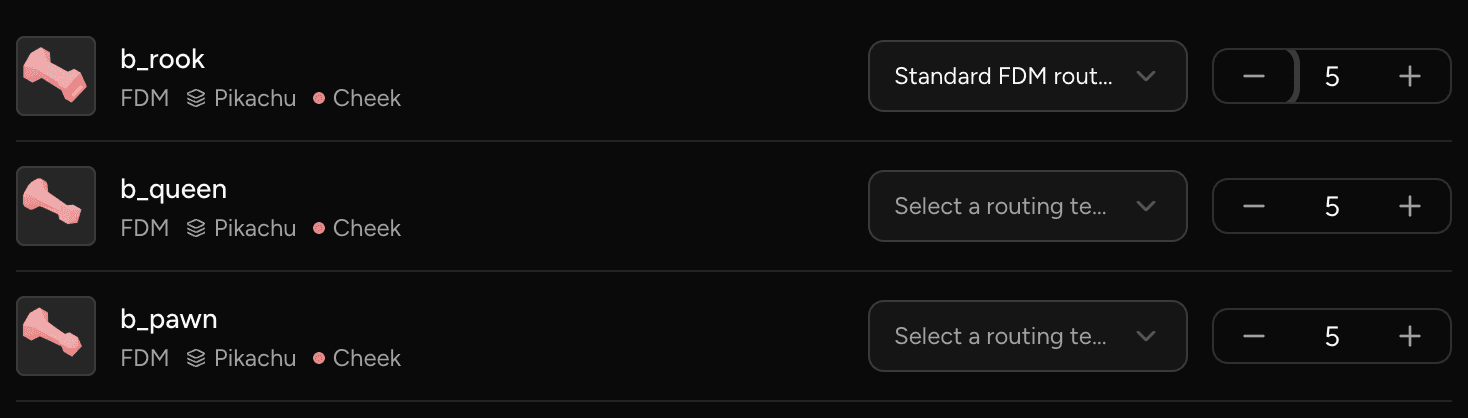
With the setting on, the approval check runs at the moment a work order is created or scheduled. A part whose chosen routing is not an approved template can't be scheduled: its routing dropdown is locked to a Select a routing template placeholder, and submitting anyway surfaces a Failed to schedule parts notification.
ℹ️ The check applies to whatever routing was chosen for that part — automatic or explicitly selected. One rule, no special cases. Note that an Automatic (derived) routing is never an approved template, so with the setting on, every part needs an approved template to be scheduled.
Which actions are blocked
Any action that creates a work order or schedules parts for production is blocked when the selected routing is not an approved template:
- Creating a work order from a part on the order Production tab
- Scheduling parts in the Create work orders dialog
In the Create work orders dialog, each part row is evaluated independently. A row with an approved routing can be scheduled; a row without one shows the locked Select a routing template placeholder and stays blocked until an approved template exists for that part.
⚠️ The order-status automation that schedules parts when an order enters a production column also respects this gate: parts without an approved routing template are skipped (with a warning in the logs) and the rest are scheduled — the automation doesn't fail the whole order.
How to unblock a part
A blocked part needs an approved routing template:
- Open the part specification and go to the routing templates section.
- Approve an existing template, or create and approve a new one.
- Designate it as the default if you want it applied automatically on future work orders.
Once an approved template is in place and designated as the default, the scheduling action succeeds.
💡 Approved templates are immutable once a run references them. To change a routing after that point, deprecate the old template and create a new one. 👉 Manage routing templates
Last updated on