Orders list
Comprehensive list view of all orders with filtering and search options
Orders are created when you create a new order. View and manage orders in two formats: Board or List.
This guide explains how to manage and track orders using the Orders > List view.
What is a List?
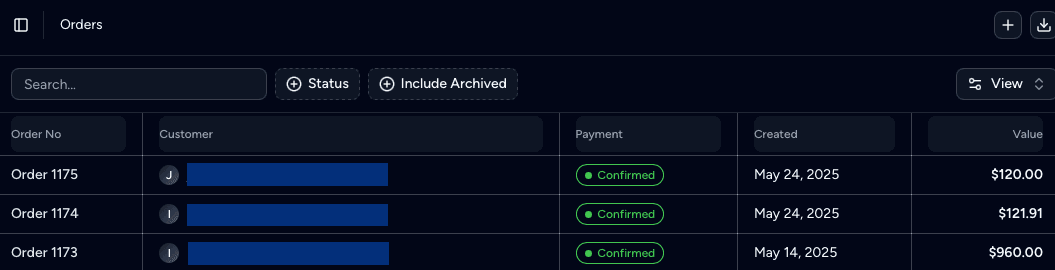
The List view offers a sequential overview of all orders, sorted by default from newest to oldest.
Key benefits of this view include:
- Search and filter orders by customer, date, or status.
- Quickly review payment status, creation date, and order value at a glance.
Search and filter orders
Use the Search bar to find orders by Order ID.
Apply filters using the Filter dropdown to:
- View orders by Payment Status.
- Show or hide archived orders by toggling Yes or No.
Download order invoices
To download a complete list of order invoices, click the ⤓ (Download) icon in the top-right corner.
- Currently supports .xlsx format only.
⚠️ The download includes all invoices, regardless of filters, from the start of your order history.
Board or List?
Both views show the same orders. Use the one that suits the task:
| Use the Board to | Use the List to |
|---|---|
| See which production stage each order is in | Find an order by its ID |
| Move an order to the next stage by drag and drop | Filter orders by payment status |
| Give the team a shared view of work in progress | Download all order invoices as .xlsx |
Related guides
Last updated on