Create a new order
Step-by-step guide to creating and managing orders in Phasio
Phasio offers flexible order creation, supporting both direct orders and conversions from existing quotes. This ensures efficient processing, whether or not a formal quote was created beforehand.
This guide explains how manufacturers create orders using the backend system.
Ways to create a new order
You can create an order using any of these methods:
- Accept a quote.
- Click the Create new pen icon next to search at the top of the main sidebar, then choose Order.
- Go to Orders > Board and click + at the left of the toolbar, before the sort and filter controls.
- Go to Orders > List and click + in the top-right corner.
Select customer account
The Create Order dialog opens. Select a customer account, then click Continue.
Add parts
Under the Parts section, add parts via:
- Upload Part: Import STEP, IGES, SolidWorks part files (.SLDPRT), Parasolid files (.x_t), STL, 3MF or ZIP files.
- Library: Opens the Parts Library, which shows this customer's parts by default. You can switch it to show all parts in your account.
ℹ️ The Library button needs the Pro plan. On other plans it shows a lock icon.
Configure part specifications
Click on each individual part to define manufacturing specifications:
- Technology: Select the manufacturing process (e.g., MJF, SLA).
- Material: Specify the material composition required for production.
- Color: Select from available colors.
- Post-processing: Select finishing operations.
- Lead time: Establish delivery time expectations.
- Pricing: To set a custom price outside the default equation logic, click the Modify Pricing (calculator) icon on the part and turn on Override total price?. The price must divide evenly by the quantity.
- Production file: (Optional) To attach the file your team produces from, click the Add production file icon on the part and choose a CAD file. It is uploaded to the part's specification when you click Create, and replaces any production file the specification already has.
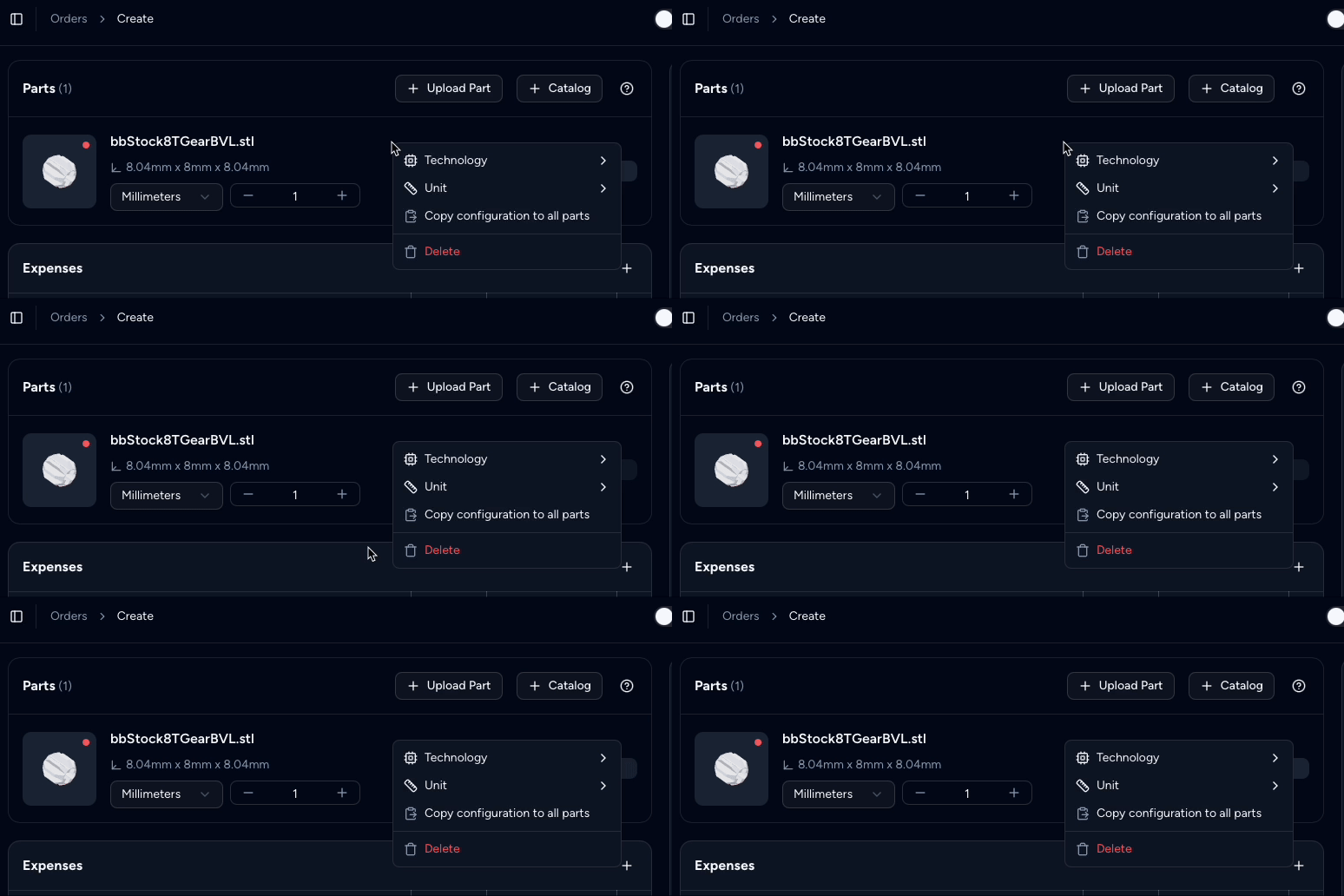
☝️ Power user tip: Right-click on parts to quickly access actions and boost efficiency.
Add supplementary charges
Add supplementary charges by clicking + under the Expenses section. You can add charges for:
- Special tooling.
- Setup costs.
- Non-standard manufacturing requirements.
Configure order settings
The right-hand column holds the order settings:
- Payment: Review the pricing and select the Payment Terms.
- Recipients: Choose who will receive notifications related to this order.
- Discount: Apply a discount code.
- Reference: Enter a custom name to identify this order on the board, the list and the order page.
- Notes: Add notes to the order.
- Billing: Confirm the customer’s billing address for accurate financial documentation and payment processing.
- Shipping: Open the Shipping section to set the shipping method, address, rate, dispatch date and Incoterm.
In the header, you can also set:
- Internal Only: Enable this toggle if the order is for internal tracking only and should not be shared with the customer.
- Currency: Choose the order currency. The selector appears only when your store has more than one currency.
Generate the order
Click Create in the top-right corner to validate inputs and generate the order. If a part is still analysing, failed to upload, or has no technology or material, Phasio opens Some parts won't be saved and lists them. Click Cancel to go back and fix them, or continue to save without those parts. If you added no recipients and Internal Only is off, Phasio asks you to confirm in Continue without recipients.
👉 Once created, the order will appear in both the manufacturer and customer dashboards. You can track progress and communicate directly through the platform. Internal Only orders are hidden from the customer and send them no notifications.
Last updated on