Edit order statuses
Create and customise order statuses in Phasio to match your production stages, beyond the default Pending, Processed and Completed.
Each order is assigned a status to help your team track progress through production stages. Phasio lets you customize these statuses to align with your specific operational process.
By default, the following statuses are available:
- Pending
- Processed
- Completed
Create an order status
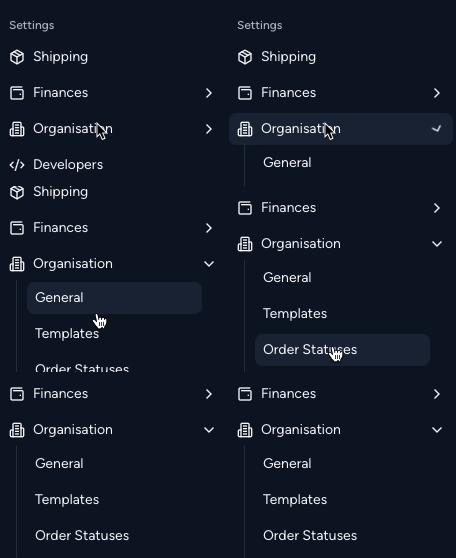
You can create and customize order statuses in Settings > Organisation > Order Statuses:
- Add New Status: Click the + icon in the top-right corner.
- Name: Enter the status name as it will appear on the Order Board.
- Automations: (optional): Assign automated actions triggered when an order moves into this status:
- Notify customer of new status: Sends an update via their preferred communication method.
- Generate shipping label: Creates a PDF label.
- Schedule parts for production: When you move an order into this column, the schedule dialog opens so you can confirm routing and quantities — cancelling the dialog aborts the status change. If the Require approved routing templates operator setting is on, any part without an approved routing template blocks scheduling — the action is blocked with a named fix. 👉 Routing template approval
- Send invoice: Generates and sends a PDF invoice to the customer.
- Send order webhook: Triggers a webhook with updated order data.
👉 Once saved, the status appears in Orders > Board.
Order status types
By default, all new statuses are marked as ACTIVE unless configured otherwise. You can assign each status to one of the following types:
- STARTING: Represents the first step in production (e.g. "Order Received"); sequence = 1
- ACTIVE: Any intermediate stage between STARTING and ENDING
- ENDING: Represents the final step in production (e.g. "Order Shipped"); sequence = n
To edit or delete a status, click the ··· menu next to the status name.
👉 Changes update automatically in Orders > Board.
Last updated on