Define pricing equation
Write a pricing equation for a manufacturing process in Phasio, using variables such as material, part geometry and machine time to calculate part cost.
Each manufacturing process in Phasio can be paired with a custom pricing equation that reflects your specific cost drivers, production logic, and business goals. These equations use flexible, math-based models to calculate part costs based on material properties, part geometry, machine time, and more.
This guide walks through how to define or edit a pricing equation for a given process.
Create your pricing equation
The Equation interface allows you to configure pricing algorithms that determine production costs:
-
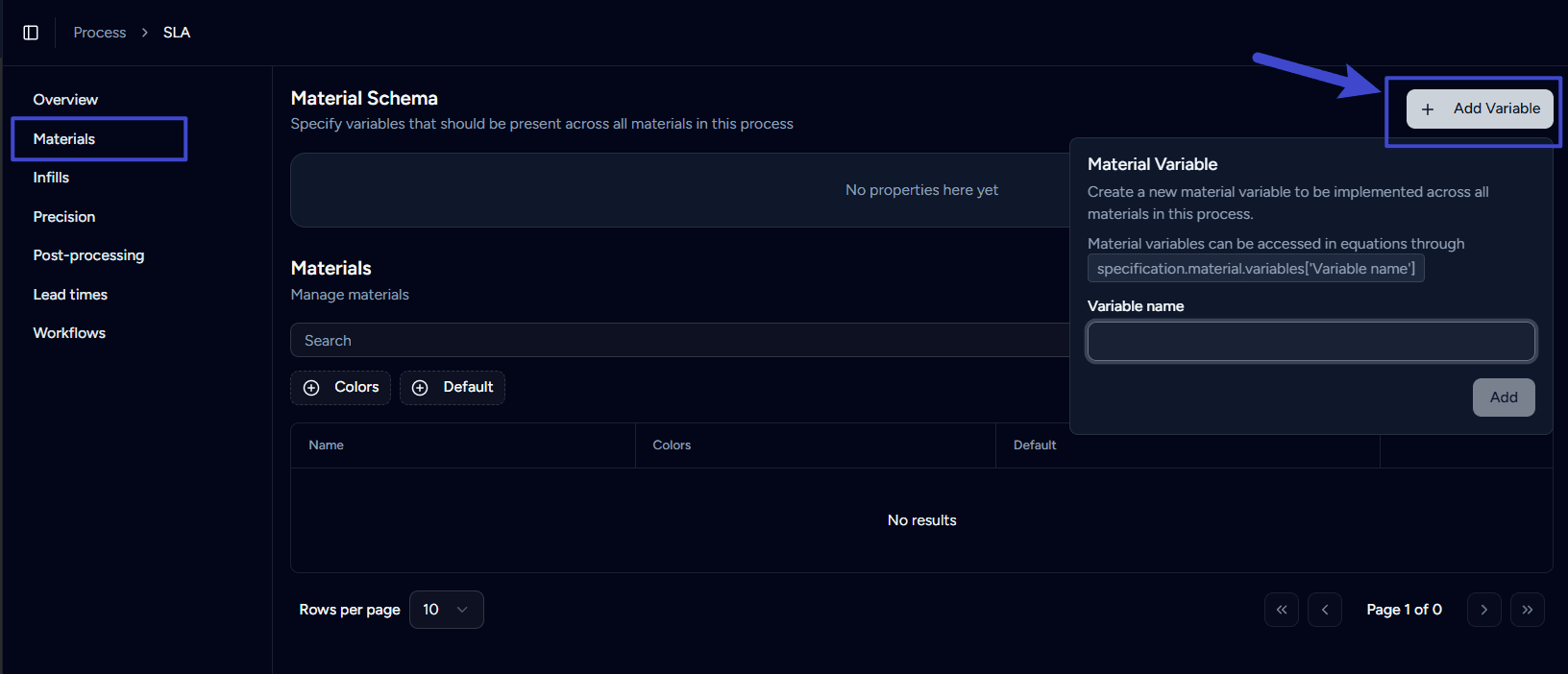
Open Settings from the user menu, click Processes under Manufacturing, and open the process. Then click the Materials tab.
-
In the Material Schema section, click Add Variable. In the Material Variable popover, enter the Variable name and click Add. The variable is added to all materials in this process.
-
After adding the necessary Material Variables, click the Overview tab, then click Create Equation in the Equation section to add a new equation.
-
Enter the Equation name in the field at the bottom of the screen.
-
Using the Typescript equation editor, build your pricing formulas.
Use the equation editor to build pricing formulas with mathematical expressions. You can also reference properties such as:
- Material properties (density, cost, waste).
- Part characteristics (volume, surface area, complexity).
- Production inputs (machine time, labor).
- Business factors (margin, overhead).
⚠️ A process without a live equation shows a Draft badge. If the process has no equations yet, its Overview tab warns: "This process can't generate quotes yet — a live pricing equation is required." For FDM, MJF, SLA, SLS, and CNC processes, the warning offers a Generate from [technology] template button, for example Generate from FDM template. It creates an equation from Phasio's template for that technology and sets it live. Use it as a quick starting point for your own custom equation.
Flag a quote line for manual review
Your pricing equation can signal that a part needs your review before the customer sees a price. When the flag is set, the price is hidden on the storefront and checkout is blocked until you approve.
done({ price: calculatedPrice, reviewRequired: true })The review flag also triggers automatically when the computed price is zero, negative, or invalid, so customers will never see a broken price.
For a full walkthrough including practical examples, see the Review-required pricing guide.
Save changes
-
Click the Save button in the bottom right of the screen, after Cancel.
-
On the equation card, click the Mark as Live icon to apply this pricing equation (model) to all future quotes and orders using this manufacturing process. The live equation shows a Live badge.
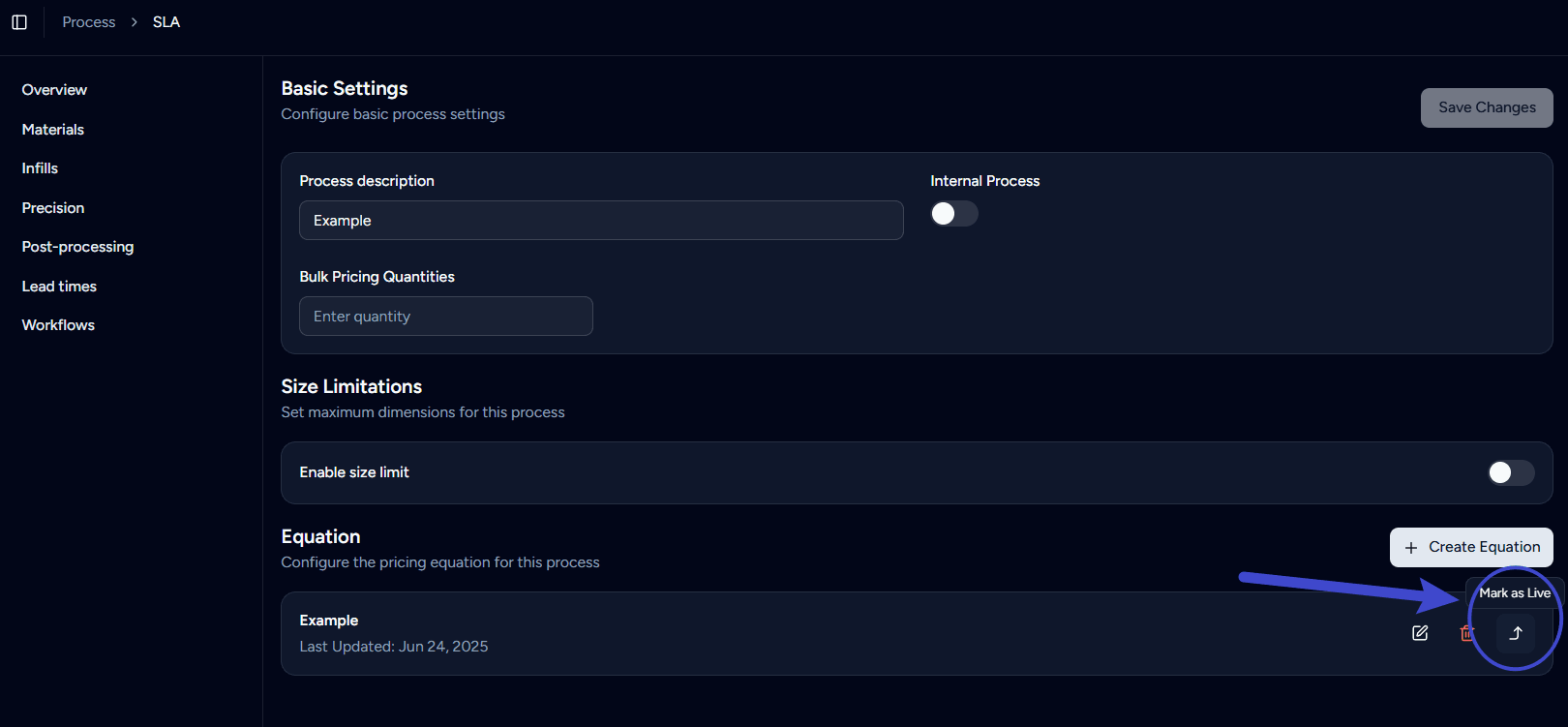
☝️ Tip: You can create multiple equations for the same process and choose which equation to be live on your Storefront.
View or restore an earlier version
Every time you save an equation, Phasio keeps it as a new version. This includes changes saved from the equation editor and changes made by the AI assistant. The equation card shows the current version number, for example v4. Equations on post-processing options and payment methods have the same history.
- On the equation card, click the History icon. The dialog lists every saved version, newest first, with who saved it and whether it came from the Editor or the AI assistant. The current version has a Current badge.
- Select a version to see what changed. By default it is compared with the version before it. Click Compare with current to compare it with the current version instead, or Compare with previous to switch back.
- To go back to the selected version, click Mark as latest. Phasio saves it as a new version, so nothing in the history is lost. If the equation is live, confirm with Mark as latest again, because your prices change immediately.
Last updated on
Add a new process
Set up a new manufacturing process in Phasio, such as FDM, MJF or SLA, with its own description, materials and operational parameters.
Order level pricing
Add extra line items to an order based on the entire cart - minimum fees, shipping, volume discounts, and post-processing minimums.