Part Backlog
Use the Phasio Backlog to track every production operation in real time, and progress or scrap parts through each work order's routing.
The Backlog is your production team’s command center. Found under Planning > Backlog, it provides a real-time, visual overview of all operations and the parts assigned to them.
Each part in the backlog belongs to a work order (production run) with its own routing — a sequence of operations that run independently from other work orders for the same part. 👉 Production Routing overview
From this dashboard, you can:
- Track progress across all of your operations in real time.
- Move parts through each operation in a work order’s routing with full visibility and control.
- Scrap & reschedule parts for production with ease.
This guide explains how to track, progress, and scrap parts across your operations.
Access the planning backlog
To open the backlog:
- Navigate to Planning > Backlog from the main sidebar.
- You’ll be taken to the production management dashboard, where you can view, track, and manage all operation activity.
Backlog layout
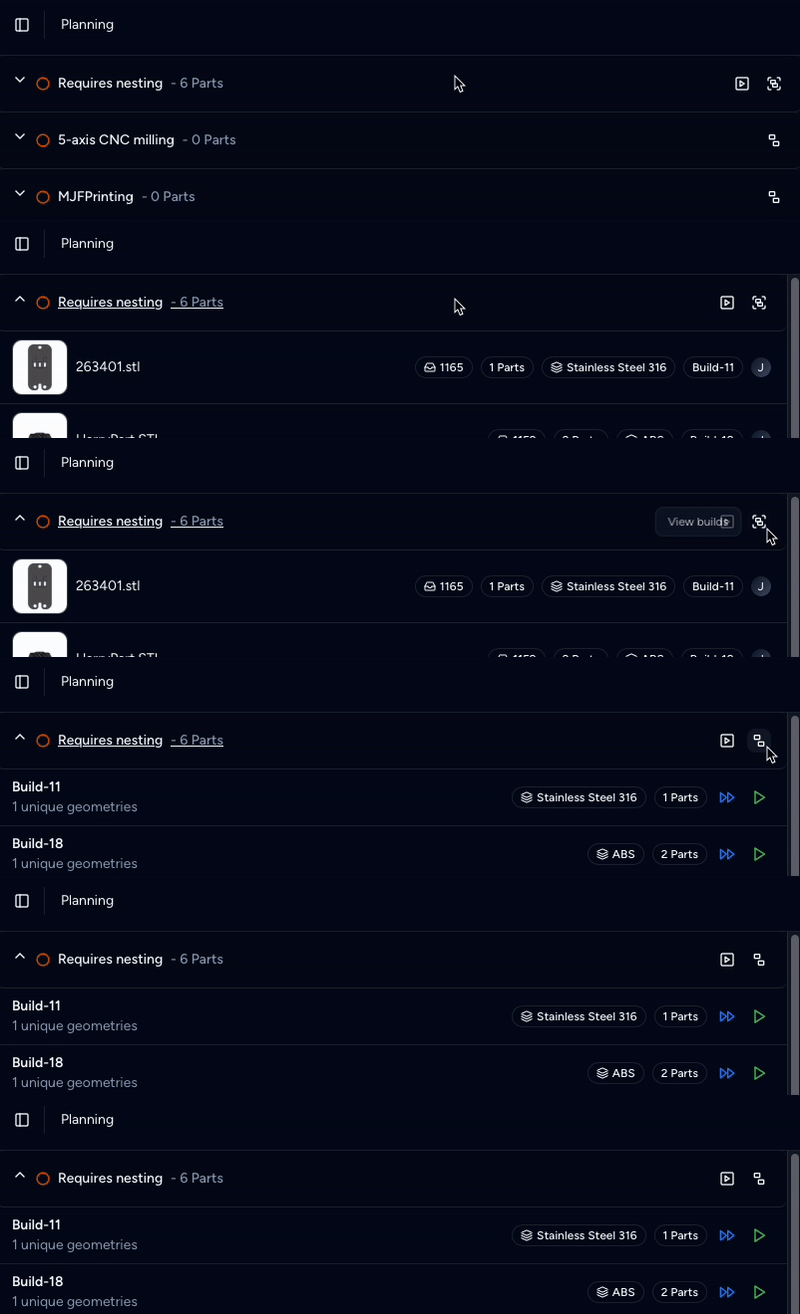
The Backlog displays all operations in an expandable accordion format.
Each operation appears as a row that includes:
- Operation name.
- Number of assigned parts.
Click a row to expand it and view the individual parts or groups present in that operation.
Toggle between Part view and group view
The backlog supports two display modes:
- Part View shows individual parts with full detail — including thumbnails, order numbers, material specs, and customer. This view is ideal for managing parts one-by-one with complete traceability.
- Group View displays parts that are grouped and processed together. This view focuses on batch management, showing group-level data like total part count, unique geometries, and shared material specifications.
Each operation row includes a toggle button to switch between View Parts and View Groups.
To make Groups the default view, see how to manage operation settings.
Step 1. Progress parts to an operation
This step covers how to move parts from your backlog into the next stage of production.
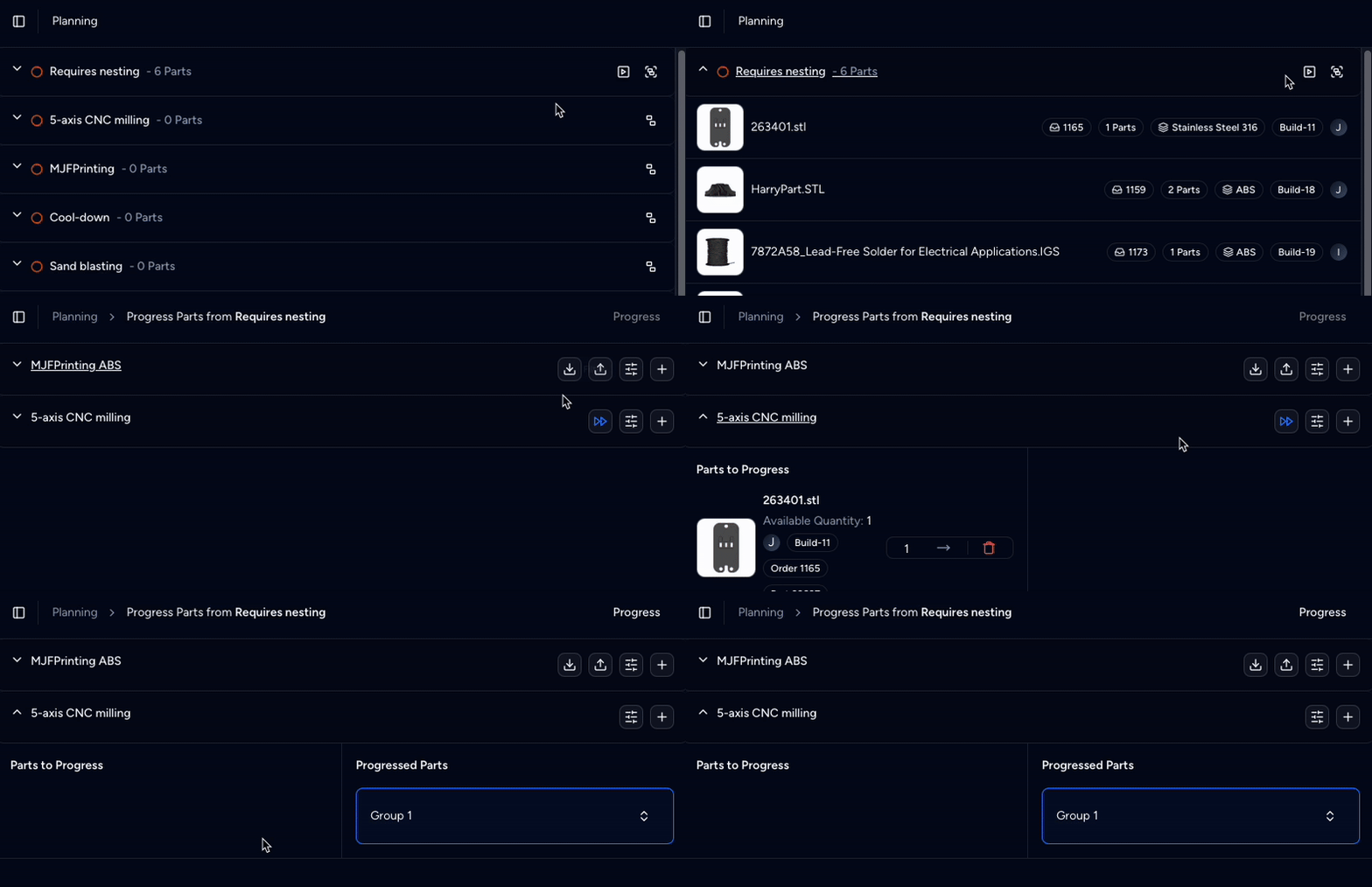
Part View
-
View assigned parts
Click the Play button [▶] next to an operation to see all assigned parts.
-
Move individual parts to the “Progressed Parts” swimlane for review
Click the arrow icon [→] next to a part.
If the part has multiple units, you can specify how many units to move.
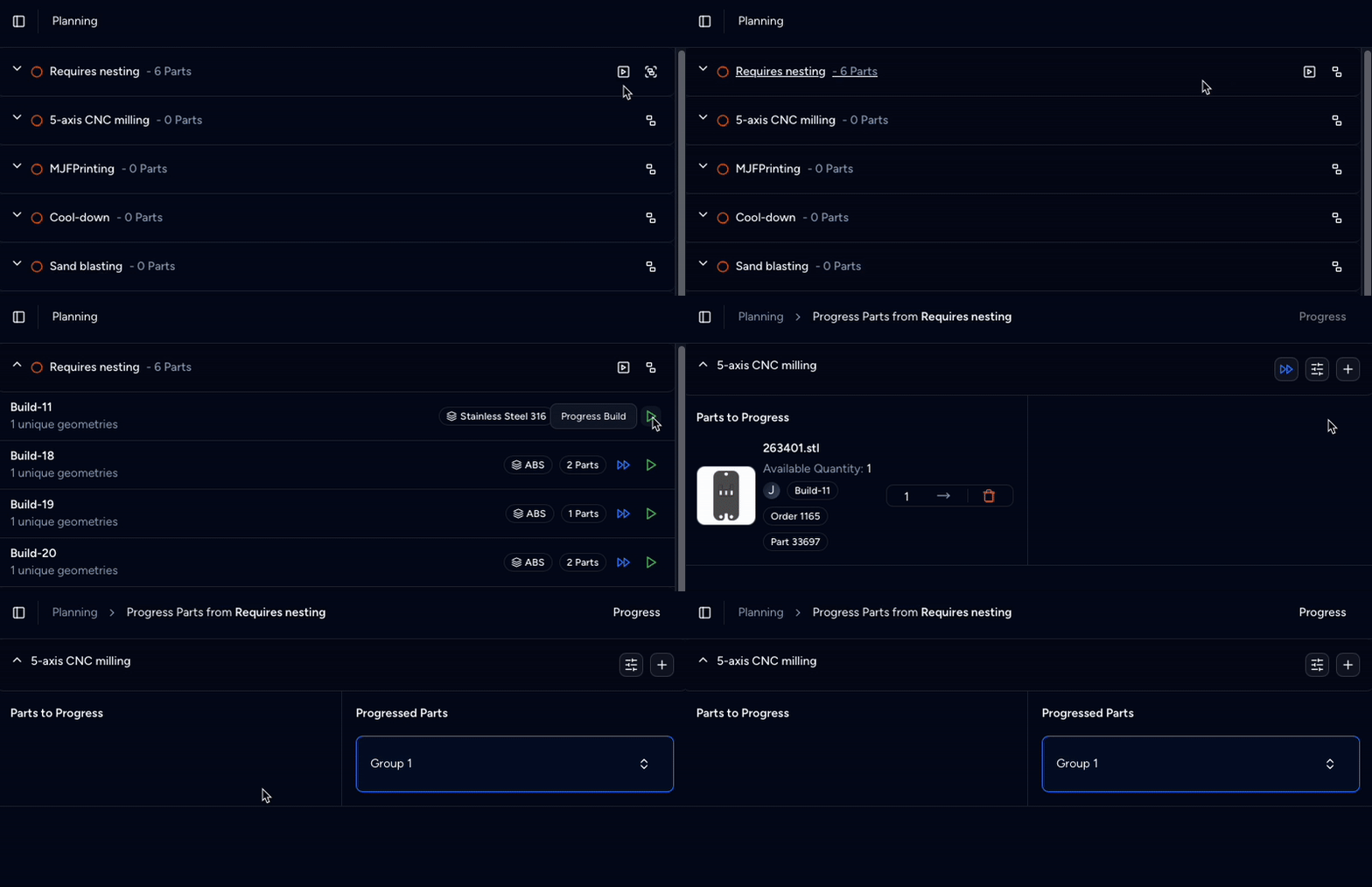
Group View
-
View parts in a group
Click the Green Play Button [▶] at the group level to open a focused view of all parts within that group.
-
Move individual parts to the “Progressed Parts” swimlane for review
Click the arrow icon [→] next to a part.
If the part has multiple units, you can specify how many units to move.
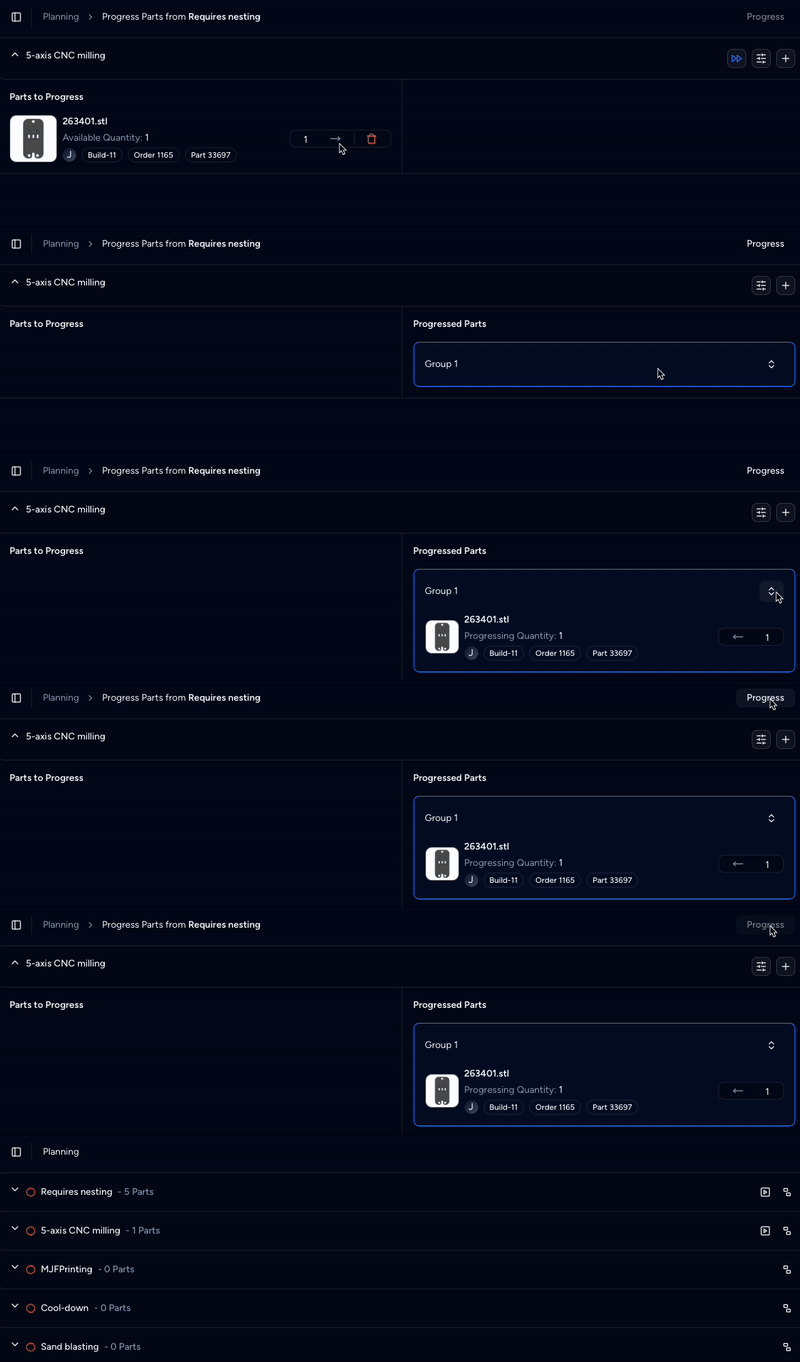
Step 2. Click Progress to send parts to the next operation
Once you are ready, click the Progress button (top-right).
👉 This will send all items in the “Progressed Parts” swim lane to their assigned operation.
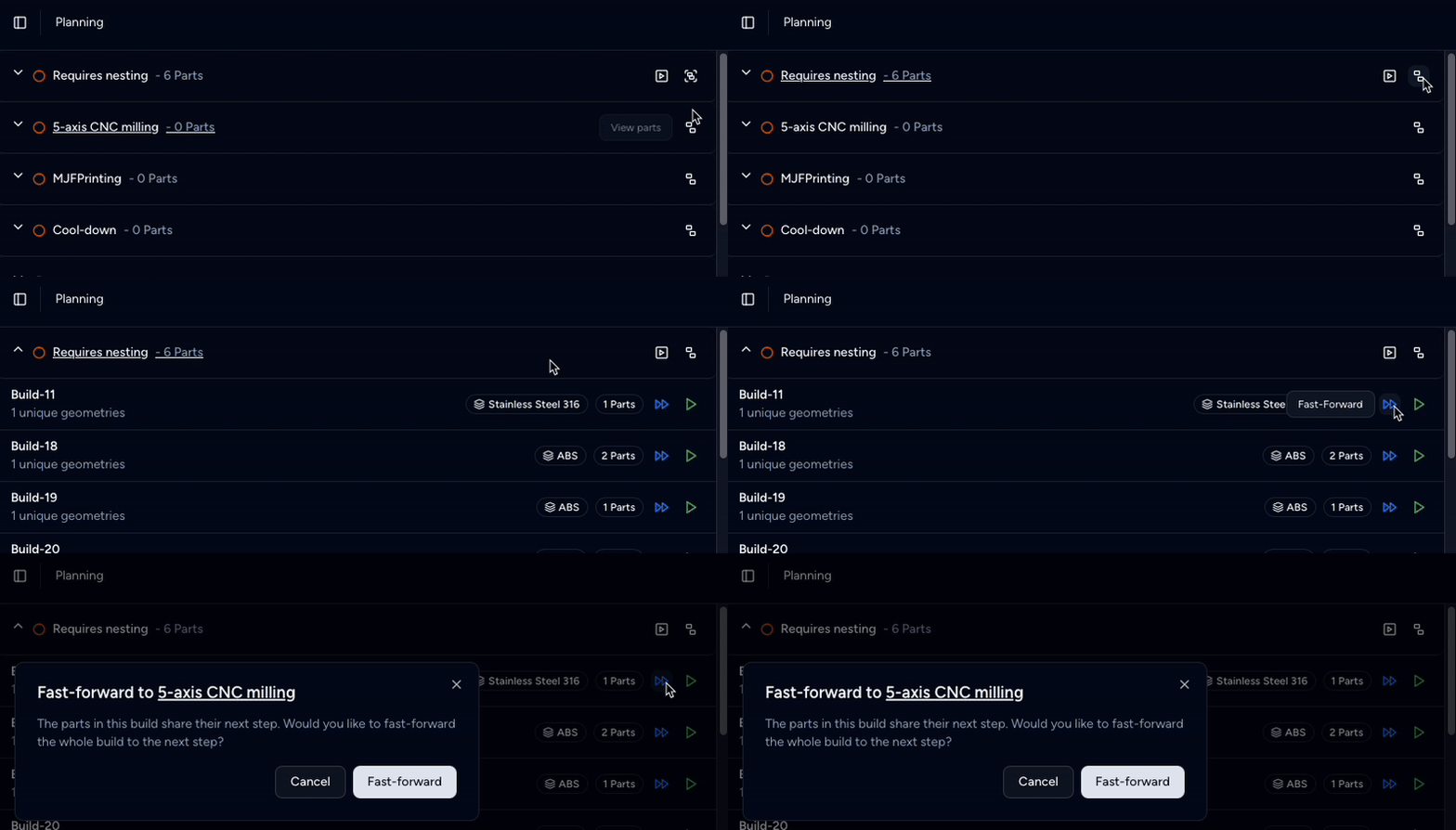
Fast-forward parts to the next operation
Alternatively, you can skip manual steps and instantly move all parts in a group to the next operation:
- Click the Blue Double Play Button [▶▶].
- In the confirmation modal, click Fast-forward to proceed.
All parts in the group will be sent to the next operation.
⚠️ This option is only available when all parts in the group share the same next operation.
Manage groups
Groups help organize parts into logical batches for production.
-
Automatic group creation:
When parts are moved to the ”Progressed Parts” swim lane, they're automatically grouped if no group exists. By default, all selected parts go into one group unless manually split.
-
Create multiple groups:
To organize parts into separate batches, click the + button next to the destination operation — this is ideal for batching by material, priority, or processing time.

Operation-specific integrations
Depending on the operation type, you can:
- Download parts: Export part files as a ZIP archive, useful for offline or third-party processing.
- Upload 3MF/G-code: Download and Batch upload machine-ready files, commonly used in FDM or powder bed workflows.
- Use external integrations: Sync with external applications such as nesting software to optimize build preparation.
👉 For implementation examples, see our guides on Adding New Operations and workflows for Powder Bed Printing and FDM Printing.
Scrap a part from an operation
To scrap a part during production:
-
Click the red scrap icon [🗑️].
-
In the popup modal, enter the required details:
- Scrap Reason: For quality tracking and traceability.
- Schedule Replacement: Toggle to auto-create a replacement.
- Replacement Quantity: Adjust if different from the scrapped quantity.
-
Click Confirm to proceed.
This will move the item to the “Progressed Parts” swim lane for review.
-
Once ready, click the Progress button (top-right).
This will finalize all items in the “Progressed Parts” swim lane. Scrapped parts are terminal and are not sent to any operation.
Parts with Schedule Replacement enabled will be queued at the first operation of their work order's routing.
👉 To progress parts with full per-destination disposition and build naming, see the Build screen.
Last updated on