MCP
Connect an AI client such as Claude or ChatGPT to your Phasio account over the Model Context Protocol to review your setup and draft pricing equations and document templates.
Available to manufacturers on Startup, Pro and Factory Floor plans
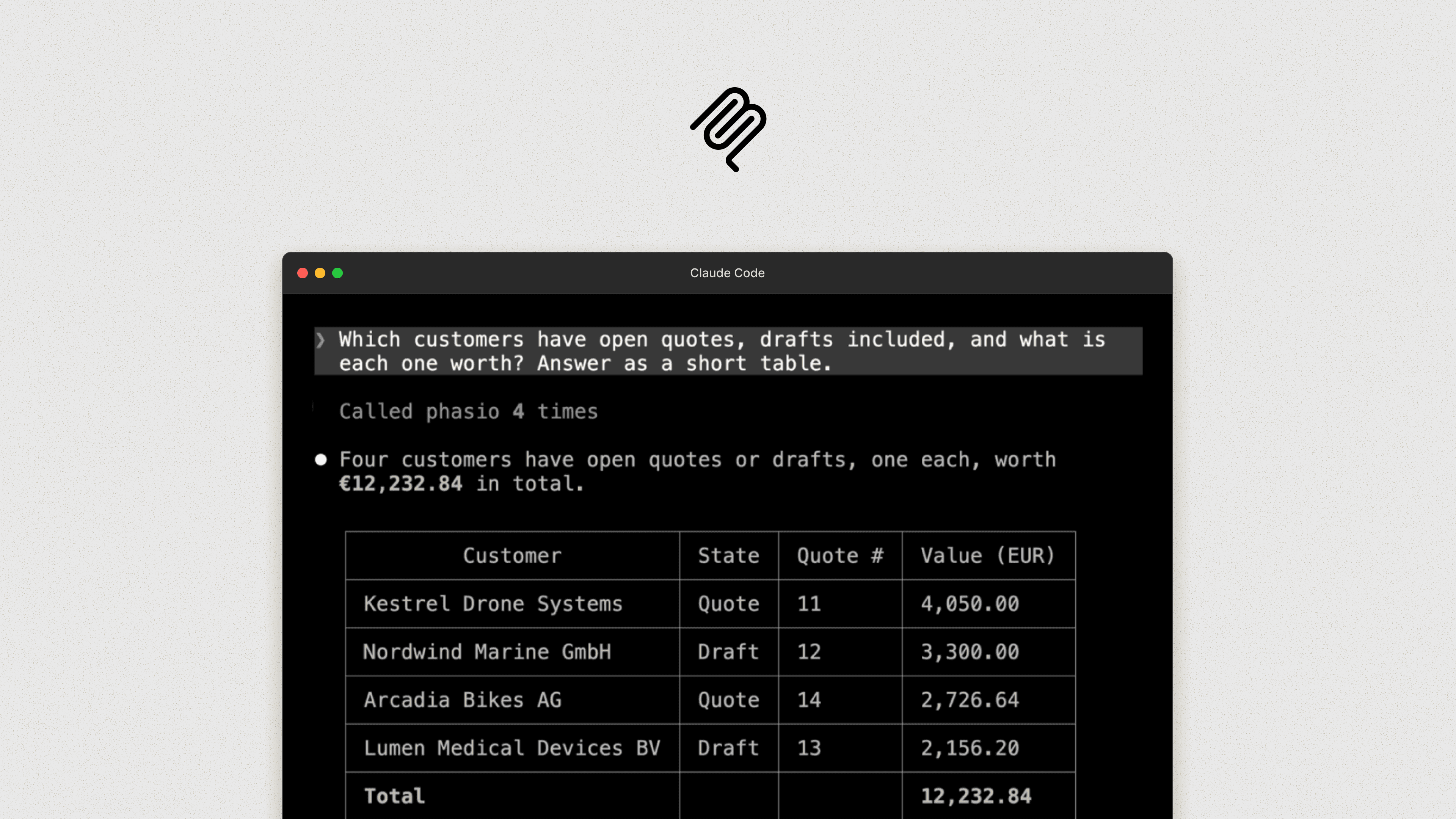
Phasio MCP lets you connect an AI client to your Phasio account over the Model Context Protocol (MCP), an open standard that AI clients use to call tools in other systems.
Once connected, Claude, ChatGPT or another MCP-capable client can read your configuration, flag setup problems, and draft pricing equations and document templates for you to review.
Setup
General
Phasio MCP is a remote MCP server. It uses streamable HTTP and OAuth sign-in, so you sign in with your Phasio account and don't need an API key. Use the URL for the region of your Phasio account. If you open Phasio at app.eu.phas.io, your region is EU; if you open it at app.us.phas.io, it's US.
A connection works only in its own region. If you connect to the URL of the other region, sign-in fails.
| Region | MCP Server URL |
|---|---|
| Europe | https://m-api.eu.phas.io/api/manufacturer/v1/mcp |
| United States | https://m-api.us.phas.io/api/manufacturer/v1/mcp |
Every client ends with the same sign-in:
- Your client opens a Phasio sign-in page in your browser. Sign in with your Phasio account, as you do for the app.
- Phasio shows a consent page that names the client, shows the organisation it will act as, and lists what it asks for: read your organisation's Phasio data through MCP tools, your name and email address, and access until you disconnect it.
- Click Allow. Your browser returns you to the client, and the Phasio tools appear there.
To check the connection, ask your AI client: "What can you do with Phasio?" It should list Phasio tools such as describeConfiguration and lintConfiguration.
The examples below use the EU URL. Replace it with the US URL if your account is in the US. Client menus change often; if a step doesn't match what you see, follow the client's own guide, linked under each client.
Claude
- In Claude, go to Customize > Connectors.
- Click + Add, then Add custom connector.
- Enter the name
Phasioand the Phasio MCP server URL, then click Continue. - For authentication, choose a sign-in option, and under OAuth client choose Register automatically. Leave request headers empty.
- Sign in to Phasio and click Allow.
- In a chat, click +, then Connectors, and turn on Phasio.
On Claude Team and Enterprise plans, an owner adds the connector under Organization settings > Connectors, and each member then clicks Connect to sign in. See Claude's guide to custom connectors.
Claude Code
-
Add the server:
claude mcp add --transport http phasio https://m-api.eu.phas.io/api/manufacturer/v1/mcp -
In Claude Code, run
/mcp, select phasio and follow the browser sign-in.
See Connect Claude Code to tools via MCP.
ChatGPT
- On ChatGPT on the web, open Plugins.
- Click +, then Add custom MCP server.
- Enter the name
Phasio, and under Connection enter the Phasio MCP server URL. - For authentication, choose OAuth.
- Accept the warning and click Create as a plugin, then install it and sign in to Phasio.
- In a chat, type
@and select Phasio.
Your ChatGPT workspace's permissions decide whether you can add custom MCP servers. See OpenAI's guide to adding a custom MCP server.
Codex
-
Add the server:
codex mcp add phasio --url https://m-api.eu.phas.io/api/manufacturer/v1/mcp -
Sign in:
codex mcp login phasio
In the Codex desktop app or IDE extension, select Authenticate next to the server instead. See the Codex MCP guide.
Cursor
-
Add Phasio to
~/.cursor/mcp.jsonfor all projects, or to.cursor/mcp.jsonin one project:{ "mcpServers": { "phasio": { "url": "https://m-api.eu.phas.io/api/manufacturer/v1/mcp" } } } -
Turn the server on under Customize in the sidebar and sign in to Phasio when Cursor asks.
See Cursor's MCP docs.
Other clients
Any client that supports remote MCP servers over streamable HTTP with OAuth sign-in can connect. Give it the Phasio MCP server URL and choose OAuth. The client registers itself with Phasio, so you don't need a client ID or secret.
Common use cases
FAQ
Last updated on