Routing
How Phasio decides the sequence of operations each work order follows, and how to assign operations to your processes and post-processing options.
Available to manufacturers on the Factory Floor plan
A routing is the ordered list of operations a work order moves through: the specific path that production run takes through your shop. An operation is a stage in your production, such as a machine, a manual step or a quality check, for example Printing, Sand blasting or Quality Control. Each step in a routing points to one operation, and the routing is what the shop floor tracks: as parts progress through operations, balances update on that work order alone.
A work order is a single production run of a part, with its own routing and its own quantity tracking. Because a part can have several work orders, you can run the same part twice with different routings: an extra QC pass on one run, a rush path that skips post-processing on another. Each run is tracked separately from start to finish.
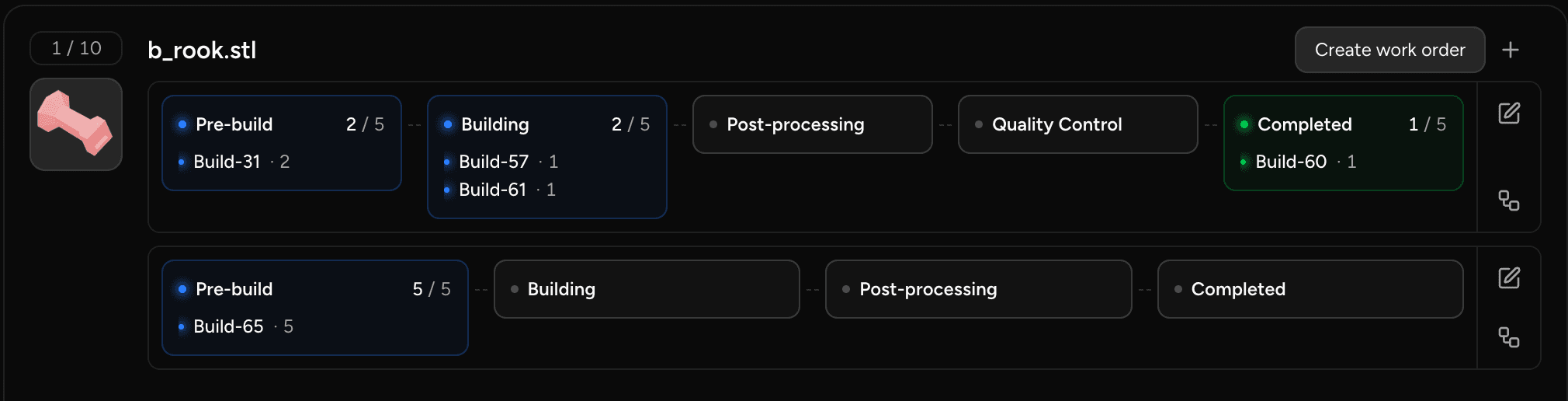
How a work order gets its routing
When a work order is created, Phasio gives it a routing in one of two ways:
- Default routing template: if a routing template is set as the default on the part's specification, that template is applied to the new work order.
- Automatic: if no default template is set, the routing is derived fresh from your current process configuration at the moment the work order is created. It combines the operations assigned to the part's process with the operations assigned to its selected post-processing options, ordered by each operation's sequence.
Either way, the routing is snapshotted onto the work order. The snapshot is independent of anything that happens later: editing a part's routing templates, adding a new operation to your process, or changing a template's steps has no effect on work orders already in progress. Each work order can also be customised for that run, at creation or later, without affecting other work orders or the part's templates. See Work orders.
Routing templates
A routing template is a reusable routing saved on a part specification. When you run a part repeatedly and want the same sequence every time, create a routing template on its specification and set it as the default. Future work orders for that part start from that template's operations.
Templates are approved automatically unless the Require approved routing templates for production setting is on. Once a work order uses a template, the template is frozen. To change it, use Deprecate & replace, which deprecates it and creates the new version in one step. Existing work orders keep the snapshot they were created with.
You can also customise a single run's operations when you create it, without creating a template. If the customised routing is worth keeping, you can save it as a reusable template. See Routing templates.
Automatic routing
A part with no default template gets automatic routing: no authoring required. Adding a new operation to your shop process reaches every future automatic work order with no edits to individual parts. A shop with thousands of parts never needs to touch a routing template, because the process configuration is the routing.
Automatic routing is per part, not a global switch. A specification with no default template is automatic; setting a default template makes that part curated. A shop can be almost entirely automatic with a handful of curated exceptions.
When to use templates or automatic routing
| Use routing templates when… | Use automatic routing when… |
|---|---|
| You need consistent, approved routings per part | You want new operations to reach all future runs instantly |
| Your process requires sign-off before production | You have a high volume of parts and don't want per-part authoring |
| Different parts need meaningfully different step sequences | All (or most) parts follow the same shop process |
If the Require approved routing templates for production setting is on, parts without an approved template cannot be put into production. An automatic routing is never an approved template. See Routing template approval.
Set up your routing
By configuring your routing, you set the exact sequence of production steps each part progresses through. You assign operations to each manufacturing process and to each post-processing option, and Phasio builds the right routing for every part automatically.
- Create your operations. See Operations.
- Assign operations to each process.
- Assign operations to each post-processing option.
- Optionally, create routing templates for parts that need their own routing. See Routing templates.
For complete setups, see the FDM and powder bed routing examples.
Assign operations to processes
Since you may have several manufacturing processes, each with its own requirements, assign only the relevant operations to each one. This makes sure the correct steps are used in production and avoids misrouting.
- Open Settings from the user menu, then click Processes under Manufacturing (Settings > Manufacturing > Processes).
- Select the process you want to configure, then click the Workflows tab.
- Under Workflow Steps, you see every active operation set up in your system, each with a switch. The final station is labelled Completion step for workflow. Processes and post-processing options choose from this same list of operations.
- Turn on the switch for each operation this process uses. Operations run in their global sequence order, not the order you switch them on.
- Click Save Changes to apply the configuration to all future work orders for parts made with this process.
Do not assign post-processing operations on this screen. Every operation enabled on a process is included for every part made with it. Assign operations that only apply when a customer selects a post-processing option to that post-processing option instead.
Because these are the operations Phasio reads when it derives an automatic routing, adding or removing an operation here takes effect on every future automatic work order, with no edits to individual specifications. A part with a default routing template uses the template instead.
Assign operations to post-processing
- Go to Settings > Manufacturing > Post-processing and click the post-processing option you want to configure.
- In the Basic settings form, use Workflow Steps to add each operation this post-processing option uses (Add workflow step).
- Click Save.
When a part's routing is derived, the operations of its selected post-processing options are combined with the process's operations and ordered by each operation's sequence.
Archived operations
If you archive an operation, Phasio removes it from the Workflows tab of every process and the Workflow Steps of every post-processing option, and deprecates every routing template that uses it. Work orders that already include the operation keep it. See Archive an operation.
Last updated on
Specifications
View and manage part specifications: the manufacturing recipe for a part revision, with its customer references, constraints, production instructions, files and properties.
Operations
Create, configure, reorder and archive the production operations that make up every routing, and set how parts are grouped and named at each one.