Lead Times
Set up the lead times customers choose from, price them in your equations, and see how Phasio turns lead times and durations into an estimated dispatch date.
Available to manufacturers on Startup, Pro and Factory Floor plans
A lead time is a delivery option your customers choose for each part, such as Economy, Standard or Expedited. Each lead time carries a buffer: a number of hours Phasio adds on top of the manufacturing time when it estimates the dispatch date, the date an order should be ready to ship. You can think of the buffer as a grace period to begin production on a requisition.
Communication of dispatch dates for part manufacturing is essential. Phasio combines the manufacturing duration you calculate in your process and post-process equations with the lead time buffer to give your customers a best-guess estimate of when a part will be ready to be shipped.
How lead times work
Lead times are defined at the workspace level, and are uniformly available across all of your processes and post-processes. As such, all lead times are available for selection through your storefront.
Lead times do not carry a pricing multiplier. If a faster lead time should cost more, you price it inside your process and post-process equations (see Price by lead time). Earlier versions of Phasio let you set a duration range on a lead time (for example 2–3 days) and a multiplier on the lead time itself; both have been replaced by the buffer and equation-based durations described on this page.
The selected lead time appears in the compose view, and the order review screen shows the estimated dispatch date before an order is placed.
Add a lead time
You configure lead times under Settings > Manufacturing > Lead Times.
- Open Settings > Manufacturing > Lead Times.
- Click New Lead Time.
- In the Add new Lead Time dialog, enter:
- Name: the name customers see, for example
Standard. - Buffer: the buffer in whole hours.
- Auto selected: switch this on for the lead time that the storefront selects for new parts.
- Name: the name customers see, for example
- Click Add.
The table lists each lead time with its Name, Duration Buffer, and Auto selected setting. To change a lead time, click its Edit icon, change the fields in the dialog that opens, and click Update. To remove it, click its Delete icon.
If no lead time has Auto selected switched on, parts added on the storefront have no lead time, so requisition.leadTime is null in your equations. Parts added in Phasio get the Auto selected lead time, or the first active lead time if none is auto selected.
Price by lead time
You can customise the unit price of a requisition directly within your process and post-process equations by introspecting the requisition.leadTime?.name property. requisition.leadTime is null when the part has no lead time, so always use ?. and a default case. Without them, the equation fails or the price becomes NaN. Lead time names must exactly match what you configured under Settings > Manufacturing > Lead Times.
Multiplier adjusted pricing
Here's an exemplar primitive implementation of lead-time adjusted pricing:
function getLeadTimeMultiplier() {
  switch (requisition.leadTime?.name) {  // leadTime can be null
    case 'Economy':
      return 0.8
    case 'Standard':
      return 1
    case 'Expedited':
      return 1.2
    default:
      return 1  // no lead time, or a name not listed here
  }
}

done(unitPrice * getLeadTimeMultiplier())
Quantity adjusted pricing
In the above example, the unit price of a part is adjusted by an arbitrary pricing multiplier based on the selected lead time for this requisition.
Defining your lead time pricing directly within your equations, as opposed to using a general pricing multiplier defined on the lead time itself, gives you the flexibility to adjust pricing based on things such as selected quantity, and geometric properties such as part volume.
Here's an exemplar of quantity adjusted lead time pricing:
function getLeadTimeMultiplier() {
  switch (requisition.leadTime?.name) {  // leadTime can be null
    case 'Economy':
      return requisition.quantity > 1000 ? 0.95 : 0.8
    case 'Standard':
      return requisition.quantity > 1000 ? 1.1 : 1
    case 'Expedited':
      return requisition.quantity > 1000 ? 1.5 : 1.2
    default:
      return 1  // no lead time, or a name not listed here
  }
}

done(unitPrice * getLeadTimeMultiplier())
For more lead time pricing patterns, see Business logic and the Cookbook.
How the dispatch date is estimated
You calculate an estimated duration to fulfil a requisition, known as the manufacturing duration, directly within your process and post-process equations.
The dispatch date is then calculated from the requisition with the longest manufacturing duration, plus the selected lead time buffer on top:
date on which quote becomes order + max requisition manufacturing duration (process duration + Σ(post-process durations)) + lead time bufferTo return a duration from your process and post-process equations, supply it in hours as the optional second parameter of the done() function:
done(unitPrice, 24)If you are not on the Factory Floor plan, model your workflow and provide an estimated duration for each process and post-process to make the estimate as accurate as possible. In the above example, 24 hours is just an arbitrary value.
Here's how Phasio arrives at a dispatch date for a quote with a single requisition in it:
Date of quote becoming order:   15 August
Process duration:               24hrs
Post-processing duration:       48hrs
Selected lead time buffer:      48hrs
---
Manufacturing duration:         5 Days     = (24 hrs + 48hrs) + 48hrs
Estimated dispatch date:        Aug 20th   = Date of quote becoming order + 5 Days
Phasio adds the buffer for you, so never add it to the duration you return yourself. For realistic duration logic (machine counts, material procurement, customer-specific agreements, weekends), see Durations.
Workflow durations
On the Factory Floor plan, you can set a Duration in hours on each operation under Settings > Manufacturing > Operations (see Operations). Each process and post-process is assigned a set of operations through its workflow, so Phasio can calculate the overall expected duration from the assigned operations automatically. This means you can omit the duration entirely in the done() function.
If you wish to override the estimated duration for a process or post-process, you can still supply the second parameter to done(). To make life easier, you can also read the estimated workflow duration through workflow.duration in your equations directly.
This gives you the flexibility to modify the estimated duration based on things such as quantity, and geometric properties such as the volume and area of parts in a requisition.
Dispatch dates in production
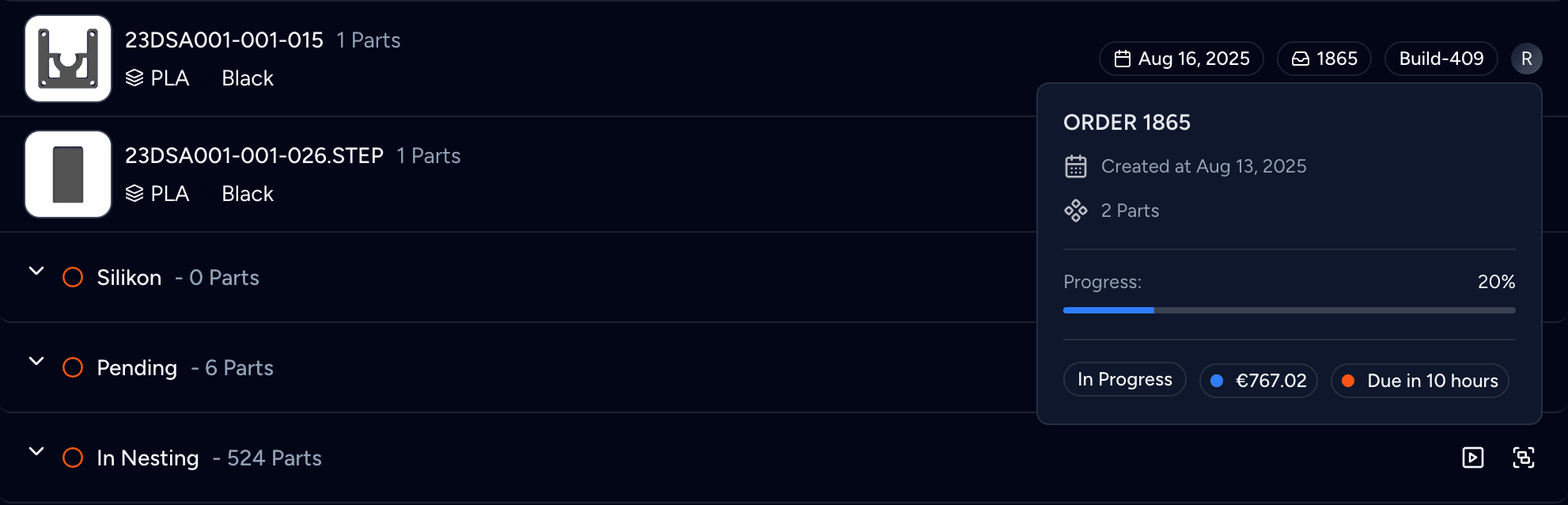
Production > Backlog (see Backlog) shows a due date on each group. It is the work order's due date if one is set. Otherwise it is the dispatch date minus the hours of the operations the parts still have to pass through. The backlog sorts the groups at each operation by the work order's due date, or by the dispatch date when no due date is set, so the parts due soonest are at the top.
On the production floor, parts show an urgency indicator based on their dispatch date, and parts that complete their workflow before the order's dispatch date get a green status indicator.
Set an explicit dispatch date
Everything above gets you as close as possible to an estimated dispatch date, but it is by no means authoritative. When attaching shipping to an order, you can optionally specify a dispatch date, and this is used instead of the estimated date. This means that you, as the manufacturer, still have total control.

Orders which have no shipping do not have an associated dispatch date, so it's vitally important that you specify shipping whilst an order is still a quote.
In the Manufacturer API, the estimated date is called expectedDispatchDate, to tell it apart from the actual dispatch date of a concrete shipment.
Last updated on
Shipping
Set up the shipping methods customers choose at checkout, from self-collection and fixed prices to the customer's own carrier account, and ship orders in one or more shipments.
Durations
Calculate manufacturing duration separately from pricing and understand how Phasio uses it to estimate dispatch dates.