Orders
An order is a confirmed purchase from a customer, tracked from creation through production to dispatch.
Available to manufacturers on Startup, Pro and Factory Floor plans
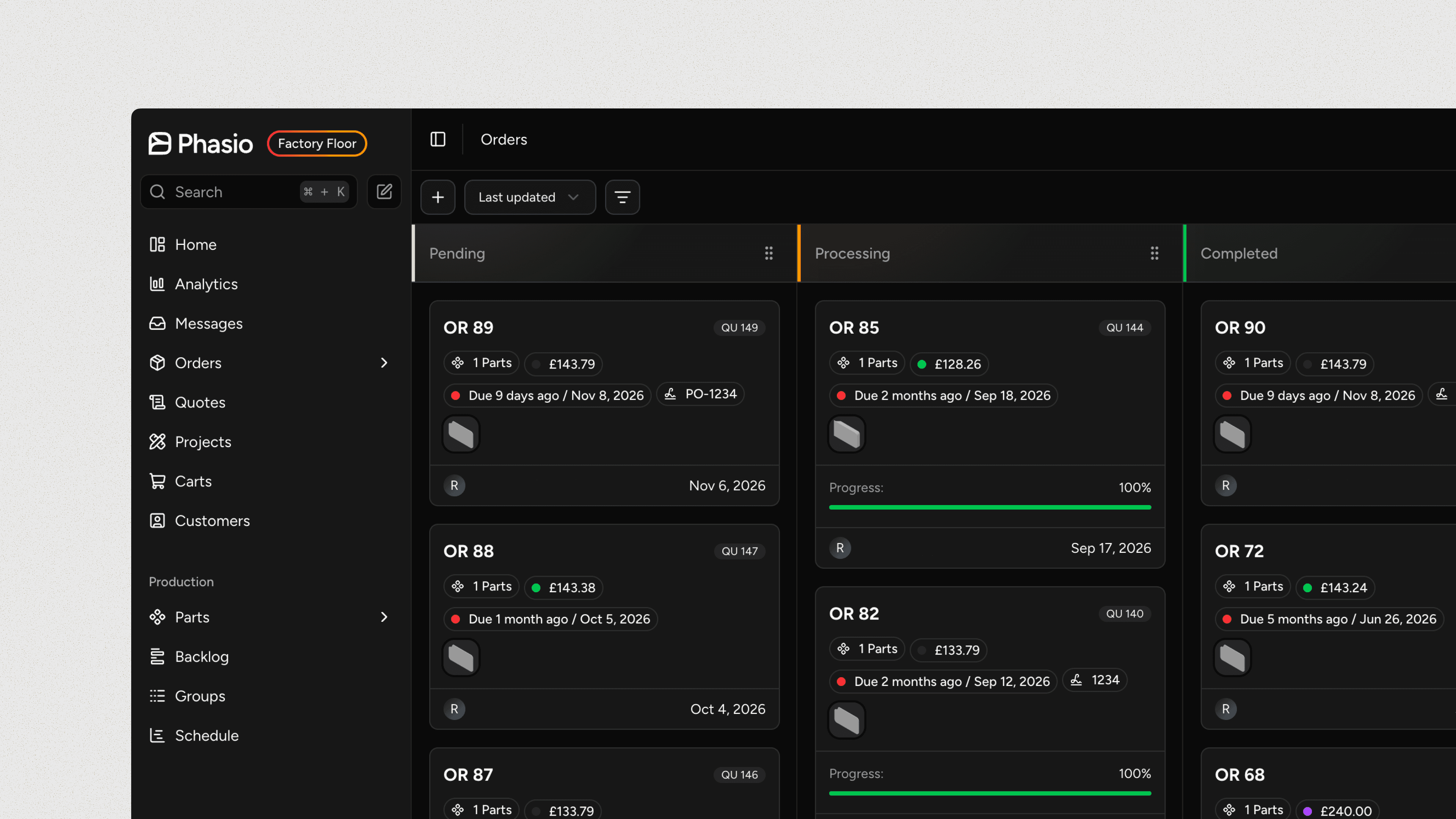
Overview
An order starts as a quote that is accepted or paid, as a checkout on your Storefront, or as an order you directly create in Phasio. Once created, it appears in both your dashboard and the customer's, unless the order is marked as internal only. The dashboard is where you track its progress and talk to the customer.
Every order has:
- A status: one of your order statuses, such as Pending, Processing or Completed. Statuses are the columns on the Board, and moving an order into a status can notify the customer, send the order confirmation or send an invoice.
- A payment status, such as Unpaid or Paid, tracked separately from its status and shown on the order card, in the list and on the order page.
- At most one project or cost centre, never both.
Create an order
- A customer checks out through your Storefront
- Accept an existing quote.
- Click the Create new icon next to search at the top of the main sidebar
- On the Board, click + at the left of the toolbar, before the sort and filter controls
- On the List, click + in the top-right corner
Add parts
- Upload Parts: Import STEP, IGES, SolidWorks part files (.SLDPRT), Parasolid files (.x_t), STL, 3MF or ZIP files.
- Add from Library: Opens the Parts Library, which shows this customer's parts by default. You can switch it to show all parts in your account.
Available to manufacturers on Pro and Factory Floor plans
Drag parts to sort parts into the sequence you need. Phasio keeps that sequence on the order screens, in the customer's Storefront, on generated documents and on production traveller sheets. You can also sort parts when you edit the order.
Configure parts
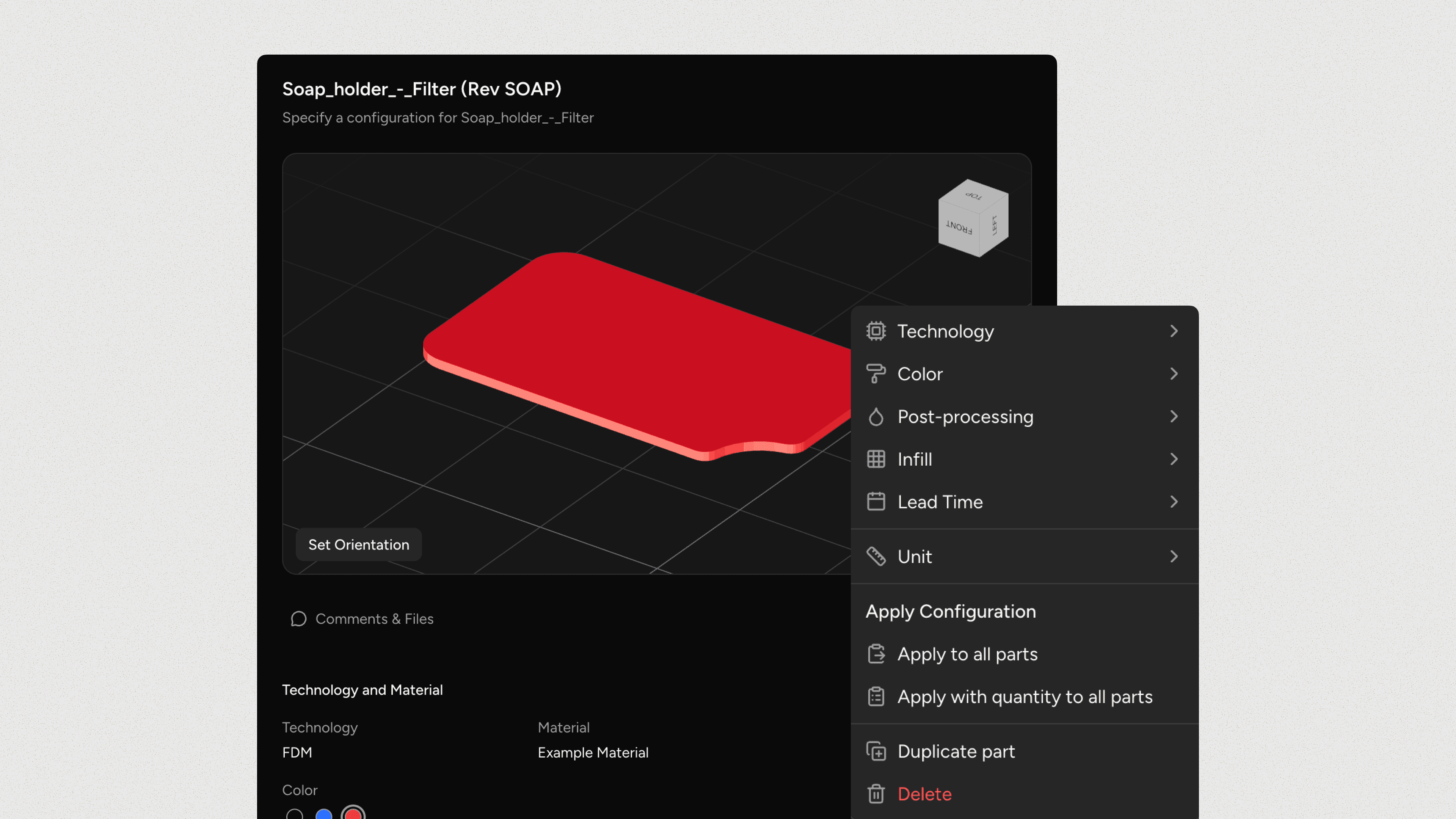
Click a part to set its manufacturing specification, and optionally override the pricing of a part.
- Technology: The manufacturing process, such as MJF or SLA.
- Material: The material required for production.
- Color: One of the colours available for the material.
- Post-processing: The finishing operations.
- Lead time: When the customer can expect delivery.
Right-click a part to quickly change specification properties, and to add a Production file. This is the file your team produces from, is attached to the part's specification, and is used during production.
Add expenses
Click + under Expenses to add charges such as special tooling, setup costs or additional services. The Create Expense dialog is the same as on quotes. See Add expenses.
Set the order settings
Most settings are in the right-hand column. Internal Only and Currency are in the header.
| Setting | What it does |
|---|---|
| Payment | Review the pricing and select the Payment Terms. |
| Recipients | Choose who receives notifications about this order. |
| Discount | Apply a discount code. |
| Reference | A custom name that identifies the order on the board, the list and the order page, such as an internal PO number or an ERP identifier. It is included in order webhook payloads. |
| Notes | Notes on the order. |
| Billing | The customer's billing address, used on financial documents and for payment processing. |
| Shipping | The shipping method, address, rate, dispatch date and Incoterm. |
| Internal Only | Keeps the order for internal tracking. It is not shared with the customer. |
| Currency | The order currency. The selector appears only when your store has more than one currency. |
You can also set the date and time the order was placed. To correct it later, use the Converted on field in the order sidebar.
Available to manufacturers on the Factory Floor plan with the Scheduling add-on
With scheduling, the new order screen shows an If accepted now panel with the day the parts would be ready and any other work that would slip. See Scheduling.
Create the order
Click Create in the top-right corner. Before creating the order, Phasio checks it:
- If a part is still analysing, failed to upload, or has no technology or material, Some parts won't be saved lists those parts. Click Cancel to go back and fix them, or continue to save the order without them.
- If you added no recipients and Internal Only is off, confirm in Continue without recipients.
The order page
Click an order on the Board or the List to open it.
Tabs
| Tab | What it holds |
|---|---|
| Items | Full specifications, dimensions, pricing and quantities of all parts, plus any expenses. |
| Files | Files attached to the order. To delete a file, hover over it, click the bin icon and confirm Delete. The file is removed for everyone, including the customer. Files linked to a part cannot be deleted. |
| Activity | Messages with the customer and your team. See Messages. |
| Production | Work orders for the order's parts. See Send parts to production. |
Sidebar
| Section | What it holds |
|---|---|
| Customer | The order owner, the customer and the dispatch date. |
| Converted on | The date and time the order was placed. You can correct it until the order has work orders or ships. |
| Project | The order's project. Move the order to another project of the same customer, or remove it from its project. See Projects. |
| Resend Order Confirmation | Resends the confirmation to the customer's preferred communication channel. Disabled while Send customer notifications from Phasio is off. |
| Payment | Pricing, the payment status, Payment Terms and the Purchase Order. Click the edit icon next to Purchase Order to add or change the PO number and PDF. If you use an accounting system, this section also shows the invoice, confirmation and estimate numbers. |
| Shipping | The shipping details. |
| Billing Address | The customer's billing address. |
| Documents | PDFs to download. See Documents. |
An internal order booked to a cost centre shows the cost centre on the order page.
Documents
The Documents section has the order's PDFs, plus any custom documents from your templates. Archived orders have no Documents section.
| Document | When it appears |
|---|---|
| Estimate | Always. It is the only document on a quote. |
| Order Confirmation | On confirmed orders. |
| Invoice | On confirmed orders, when Invoice generation is on in Settings > Finances > Payments. If you connected an accounting system, only after that system issues the invoice. |
| Custom documents | On confirmed orders. |
Parts and production files
The Parts card on the Items tab has:
- Download Parts: Download the part files as Original CAD File or Converted STL File.
- Download Traveller Sheet: Export a PDF traveller sheet for internal production tracking.
To attach the file your team produces from, right-click a part and select Upload Production File. If the part has one, you can also select Replace Production File or Download Production File.
Edit an order
Change an order's parts, quantities and expenses without voiding and recreating it:
- Open the order.
- Click ··· (More actions) in the top-right corner and select Edit.
- Make your changes, then click Save.
Every price change is recorded in the order's Activity tab, so you have a complete history of what changed and when.
Edit isn't available
Edit is hidden when any of these is true:
- The order is archived or voided.
- The payment status is anything other than Unpaid or Paid.
- Production has started on the order.
To change such an order, archive it and create a new order with the updated details and pricing.
Archive and restore an order
- Open the order and click Archive in the top-right corner. To archive several orders at once, use the List.
- In the Archive order dialog, enter an optional message.
- Leave Scrap active parts in production checked to scrap the order's parts that are in production, or clear it to keep them.
- Click Archive.
Archiving an order does not trigger a refund. Process refunds manually through Stripe or your payment provider.
To restore an archived order, open it and click Unarchive.
Messages
Use the Activity tab to message the customer about their order and see the conversation history. Your team can also hold internal conversations there. The customer cannot see them, so production notes and internal context stay on the order instead of in email and chat.
In the comment box, Enter starts a new line. Press ⌘+Enter (Mac) or Ctrl+Enter (Windows) to send.
Send parts to production
Available to manufacturers on the Factory Floor plan
On other plans the Production tab shows an upgrade card. The tab appears only on confirmed orders that have parts.
Each part you schedule gets its own production run (work order) with independent tracking.
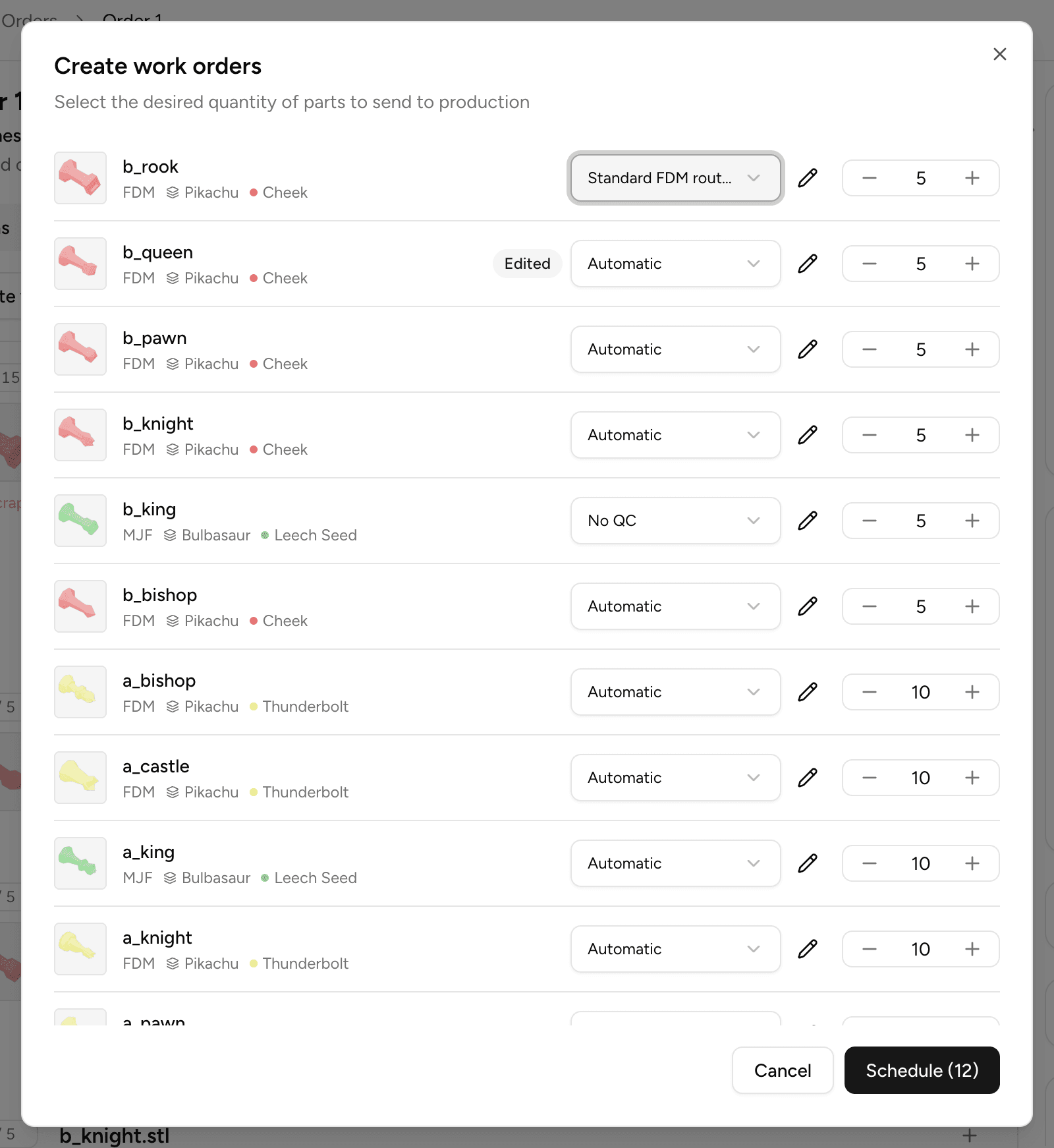
- On the Production tab, click Create work orders. You can also right-click the order on the Board or in the List and select Create work orders.
- For each part in the dialog, set the quantity to produce.
- Choose a routing template from the dropdown, or leave it on Automatic to have the routing derived from your current process configuration. Automatic is unavailable when your workspace requires approved routing templates.
- (Optional) Set a Start date and a Due date. If you leave them empty, the work orders start now and are due on the order dispatch date.
- Select Schedule to create the work orders and send parts to the first operation. The button shows how many parts you are scheduling.
Automatic routing needs no setup: parts follow your current process configuration and pick up any new operations automatically. To author, approve or designate a specific routing template, open the part specification's routing templates section. See Routing templates.
To move the order into a status when its first work order is created, set a Work order creation status under Settings > Workspace > General, in the Production section. For the full flow, see Work orders.
Order statuses
Each order sits in one status, and each status is a column on the Board. New workspaces start with Pending, Processing and Completed. Statuses can notify the customer, send the order confirmation or send an invoice when an order moves into them. To create, reorder, edit or delete statuses, see Order statuses.
FAQ
Last updated on
Start Guide
Set up Phasio as a manufacturer, step by step: your storefront, services and pricing, fulfilment, finances, production and going live, with a link to each topic.
Orders board
The board shows every order as a card in the column of its status, so your team can see and move work through each stage.