Shipping
Set up the shipping methods customers choose at checkout, from self-collection and fixed prices to the customer's own carrier account, and ship orders in one or more shipments.
Available to manufacturers on Startup, Pro and Factory Floor plans
Video tutorial
Configure Your Shipping Options
Watch on YouTube
A shipping method is a way of getting an order to your customer that they can pick at checkout, such as "Warehouse Pickup", "Express Shipping" or "FedEx Ground". Phasio's shipping management lets you configure multiple delivery options and customise them by location, package dimensions and business preferences, so the right options are shown at checkout.
How shipping works
You set up your shipping methods once, under Settings > Workspace > Shipping. There are three kinds of method, plus your shipping boxes:
| Kind | What the customer pays | Use it for |
|---|---|---|
| Self Collection | Nothing for shipping | The customer picks the order up from you |
| Fixed price | A flat price, or a price by weight tier | Deliveries you arrange and charge for |
| Customer account | Nothing for shipping; it goes on their own carrier account | Customers who ship on their own account, such as FedEx Ground |
| Shipping boxes | Not a method | The boxes you pack into, for volumetric shipping cost estimates |
When a customer checks out on your storefront, they see the methods that are available for their delivery country. You can choose which method is preselected at checkout, so customers who click straight through don't default to self-collection. You can delete a shipping method even after it has been used on an order.
The chosen shipping method then follows the order:
- It appears on generated documents and notifications, and is available as a variable in your document templates, so delivery terms stay consistent from quote to dispatch.
- Its Incoterm, if you set one, carries through to the order, so it is clear who covers freight, insurance, export clearance and import duties.
- Its cost is part of the order total. Order totals, line items and taxes are recalculated when the shipping changes on an unpaid order or quote.
- Shipping is what gives an order a dispatch date. An order without shipping has no dispatch date, so add shipping while the order is still a quote (see Lead Times).
Add a self-collection method
- Navigate to Settings > Workspace > Shipping.
- In the Self Collection section, click New Self Collection Method. The Add Self Collection Method dialog opens.
- Name: Enter a clear, descriptive name for your self-collection method. This name is shown to customers during checkout (e.g., "Warehouse Pickup", "Factory Collection").
- Incoterm: Optionally select the Incoterm for this method: Ex Works or Free Carrier. Leave it as None if you do not use Incoterms.
- Collect Contact Details: Specify whether additional contact details are required to coordinate the pickup. This ensures proper communication for scheduling.
- Click Add Method to save and activate this self-collection option in your checkout process.
Add a fixed price method
-
Navigate to Settings > Workspace > Shipping.
-
In the Fixed price section, click New Fixed Price Method. The Add Fixed Price Method dialog opens.
-
Name: Enter a clear, descriptive name for your fixed price shipping method. This name is shown to customers during checkout (e.g., "Standard Delivery", "Express Shipping").
-
Incoterm: Optionally select the Incoterm for this method. Every Incoterm except Ex Works is available. Leave it as None if you do not use Incoterms.
-
Countries: Select the countries where this shipping method should be available. This enables territory-specific shipping options.
-
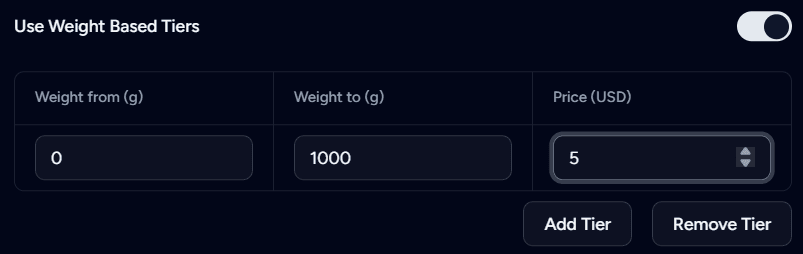
Use Weight Based Tiers: Specify whether shipping costs should vary by weight.
- If enabled: Define weight thresholds and corresponding prices to create a tiered pricing structure. Each tier has Weight from (g), Weight to (g) and a price. Use Add Tier and Remove Tier to change the number of tiers.
- If disabled: Set a single Price that applies to all package weights for a simplified checkout experience.
-
Click Add Method to save and activate this fixed price shipping option in your checkout process.
Ship on the customer's carrier account
Some customers have their own account with a carrier and want their orders shipped on it. A customer account method lets them do that: at checkout the customer enters their carrier account number and their delivery address, and is not charged for shipping. The method's Incoterm carries through to the order, so it is clear who covers insurance, export clearance and import duties.
To add one:
- Navigate to Settings > Workspace > Shipping.
- Add a customer account method. The Add Customer Account Method dialog opens.
- Name: Enter the name customers see at checkout, usually the carrier and service, for example "FedEx Ground".
- Incoterm: Optionally select the default Incoterm for orders shipped with this method.
- Countries: Optionally limit the method to certain destination countries with Add country. Reset to all countries makes it available everywhere again.
- Click Add Method.
Add shipping box prices
- Navigate to Settings > Workspace > Shipping.
- In the Shipping boxes section, click New Shipping Box. The Add Shipping Box dialog opens.
- Name: Enter a descriptive name for the shipping box that reflects its intended use or size category (e.g., "Small Parts Box", "Standard Component Container").
- Length, Width, Height (mm): Enter the exact dimensions of the shipping container to enable accurate volumetric calculations for shipping cost estimates.
- Weight (g): Enter the weight of the empty box (tare weight) in grams.
- Click Add Box to add this box to your shipping inventory.
To change a box later, click the Edit icon in its row, change the values, and click Save Changes.
Charge shipping from your pricing equations
If a flat price or weight tiers don't fit how you charge for delivery, you can calculate shipping in your order-level pricing equation instead, for example by bin-packing the parts into boxes and charging per box. The order then shows a line such as "Shipping (1x M, 1x S)". See Order-level pricing and the Cookbook.
Shipping on quotes and orders
You can change the shipping directly on a quote or order. Changes to the shipping are recorded in the order's activity thread.
When attaching shipping to an order, you can optionally set a dispatch date. It is used instead of the date Phasio estimates from your lead times and durations. See Lead Times.
If the order is unpaid and already has an invoice in QuickBooks, Xero or Zoho, changing its shipping cost also updates that invoice. Tax-exempt customers in Weclapp, Xero, QuickBooks, Bexio and Comatic are not charged VAT on shipping. See your accounting system's page under Integrations, for example QuickBooks.
Split an order into shipments
Shipments are in beta. Switch them on in Beta Features in Settings. Each beta applies only to your organisation.
With shipments, you can split an order into several courier or collection shipments, so part of an order can be dispatched or marked ready for collection while the rest stays in production. Each shipment has its own parcels, tracking, addresses and Incoterm.
A shipment moves through three stages:
- Prepared: you set up the shipment, its parcels and addresses. You can still edit or delete it.
- Released: the parcels and addresses are frozen once the shipment is packed.
- Fulfilled: the shipment is dispatched, or ready for collection. A courier shipment needs tracking information before it can be dispatched.
A shipment can be deleted until it is fulfilled. Your customers see fulfilled shipments, with their tracking, on the order.
You can also attach pictures and documents to a shipment, such as delivery evidence or paperwork, preview them in place, download them when needed, and remove them when they no longer apply. Files larger than 25 MB are rejected.
Shipments are sent from your facility addresses, which you manage in Settings under Workspace Addresses. One address is your default ship-from site.
Shipping in the API
The Manufacturer API uses shipping for the customer's selection (method, contact, address) and shipment for a concrete outbound shipment with its tracking. The estimated dispatch date is expectedDispatchDate. If your integration still uses the older shipment names for the selection, see the Shipment to Shipping migration guide.
PUT /api/manufacturer/v1/order/{id}/shipping can return 400 with ACCOUNTING_INVOICE_REFRESH_FAILED when the accounting invoice could not be updated. The shipping change was not saved, so try again. See API changes in the 31 October 2026 release.
Last updated on
Reference
Complete technical lookup for Phasio pricing equations: built-in functions, the specification, requisition, revision and processPricing objects, the level cheat sheet, and a debugging guide.
Lead Times
Set up the lead times customers choose from, price them in your equations, and see how Phasio turns lead times and durations into an estimated dispatch date.