Routing templates
Create, approve, set a default for and retire routing templates on a part specification, and require approved templates before production.
Available to manufacturers on the Factory Floor plan
A routing template is a saved, reusable sequence of operations on a part specification: the recipe a work order's routing is seeded from. Use one when you run a part repeatedly and want the same routing through your shop every time. A part without a default template gets automatic routing, derived from your process configuration.
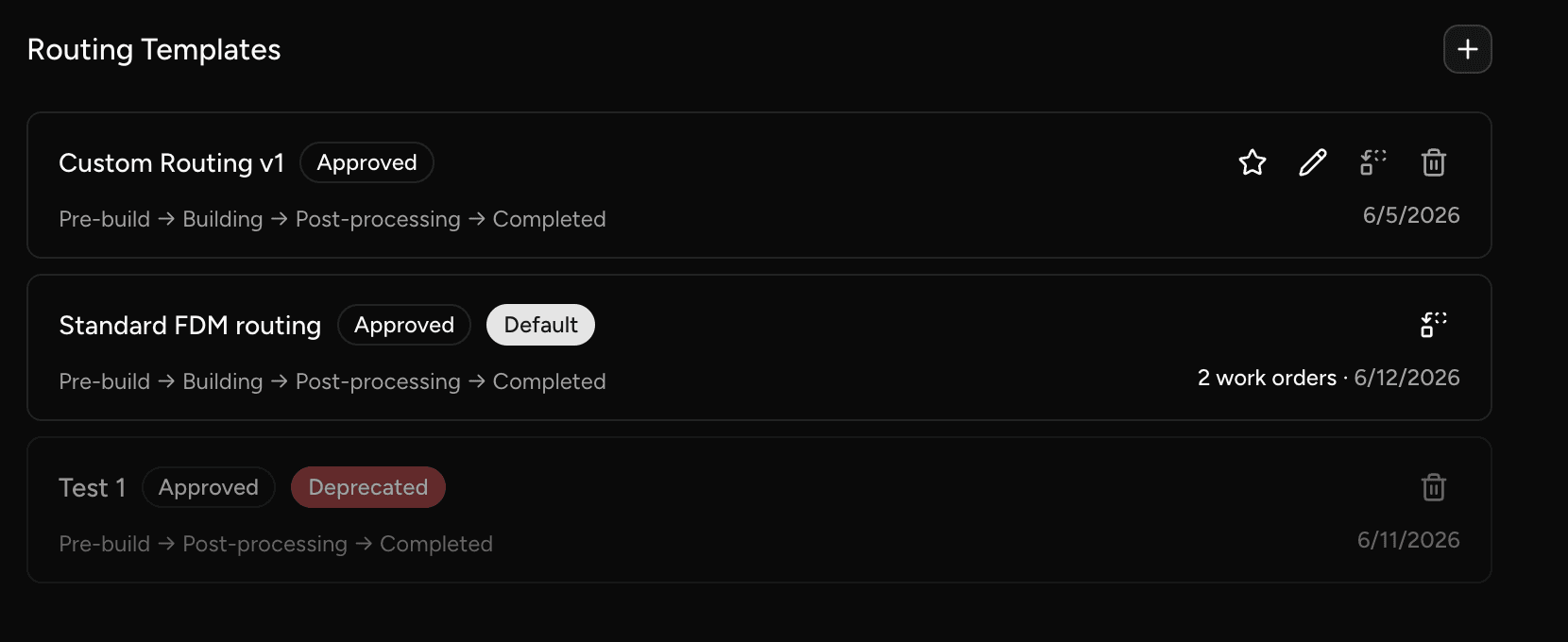
Routing templates live on the part specification page. To find it, go to Production > Parts > Specifications and open the specification.
When a specification has no default template, the Routing Templates section shows Default: Automatic. With no templates at all, it reads "No routing templates" and "Work orders will use automatic, system-derived routing."
How templates work
- Approval: each template shows an Approved or Unapproved badge. New templates are approved automatically, unless the Require approved routing templates for production setting is on.
- Default: the default template is applied automatically when a new work order is created for the part. Only one template can be the default at a time.
- Frozen once used: as soon as any work order has been created from a template, approved or not, you can no longer edit or delete it. To change its routing, use Deprecate & replace.
- Snapshots: a work order keeps the routing snapshot it was created with. Editing, replacing or deprecating a template never changes existing work orders.
If no template is set as the default, each work order's routing is derived fresh from your current process configuration. Changes to the process are picked up automatically by future runs, with no edits to the part specification.
Create a routing template
- Open the part specification and scroll to the Routing Templates section.
- Click +. The Add Routing Template dialog opens.
- Enter a Name.
- Under Routing steps, add your operations in the order they should run. You can reorder and remove steps.
- Optionally, turn on Set as default.
- Click Save.
Save a work order's routing as a template
You can also save a routing template from the scheduling dialog. After customising the operations for a specific work order, use Save as routing template inside the routing editor to capture that routing for future reuse. See Customise a single run's routing.
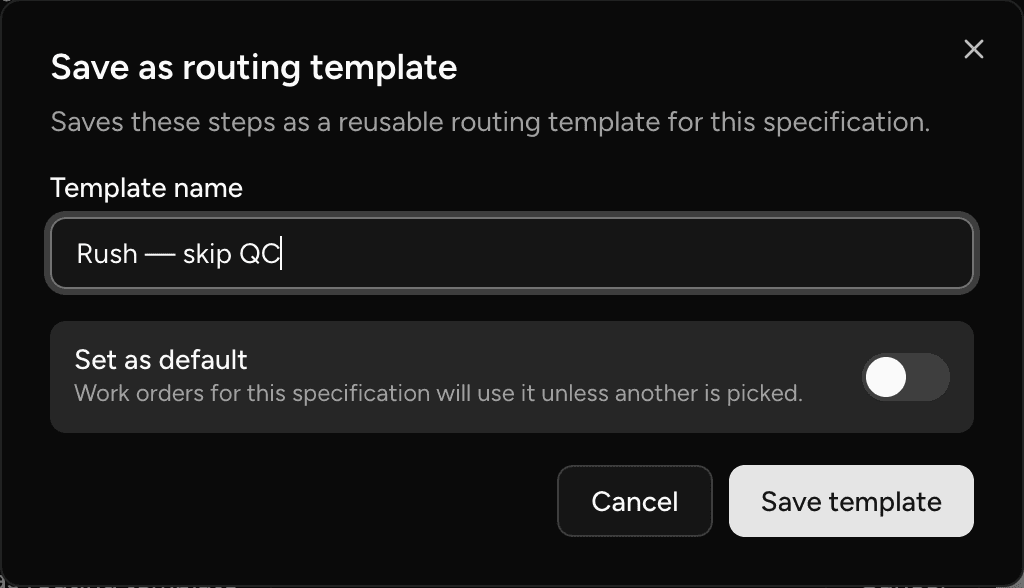
Edit a template
You can edit a template that no work order uses and that is not deprecated.
- In the routing templates section, click the Edit (pencil) icon on the template.
- In the Edit Routing Template dialog, change the Name or the Routing steps.
- Click Save.
Steps whose operation has been archived show an archived suffix.
Approve a template
A new template starts unapproved only when the Require approved routing templates for production setting is on. With the setting on, an unapproved template can't be used to schedule work orders until it is approved.
- In the routing templates section, locate the template marked Unapproved.
- Click the Approve (check) icon. A "Routing template approved" toast appears.
The Approve icon appears only on unapproved templates that are not deprecated.
Set the default template
- In the routing templates section, find the template you want to use as the default. The template does not need to be approved, but it cannot be deprecated.
- Select the star icon on that template. It becomes the default immediately, and a confirmation toast appears.

Deprecate a template
A template is frozen as soon as any work order has been created from it. To retire a used template and replace it with an updated version:
- In the routing templates section, click the Deprecate & replace icon on the template.
- The Replace Routing Template dialog opens with the template's steps and the name "{name} (revised)". Change the name and steps as needed, and optionally turn on Set as default.
- Click Save.
Phasio creates the new template and deprecates the old one. The old template shows the Deprecated badge and Replaced by {name}. If the old template was the default, the new template becomes the default.
A template that no work order uses has a plain Deprecate icon instead. Confirm in the Deprecate "{name}"? dialog. Deprecated templates stay visible but cannot be used for new work orders. If you deprecate the default template, the specification goes back to automatic routing.
Archiving an operation also deprecates every template that uses it. See Archive an operation.
Existing work orders are unaffected: each run keeps the routing snapshot it was created with.
Delete a template
You can delete a template that no work order has been created from.
- In the routing templates section, click the Delete (trash) icon on the template.
- Confirm in the Delete "{name}"? dialog. This cannot be undone.
A template already used by a work order can't be deleted, and the Delete icon is hidden. Use Deprecate & replace instead.
Routing template approval
When your shop needs sign-off before a routing reaches production, turn on Require approved routing templates for production in Settings > Workspace > General, under the Production section. The setting saves as soon as you toggle it. It is off by default; if you leave it off, nothing in this section applies.

What the setting does
With the setting off, any routing, approved or not, can be used when scheduling a work order.
With the setting on, the approval check runs at the moment a work order is created or scheduled. A part whose chosen routing is not an approved template can't be scheduled:
- In the routing dropdown, Automatic is disabled with the note "Requires an approved routing template".
- If the part has no default template, the dropdown shows the Select a routing template placeholder. You can still pick any approved template that is not deprecated.
- Submitting a part without an approved template shows the error No approved routing template for {part}, with an Open Routing action that opens the part specification.
- New routing templates start unapproved. See Approve a template.
The check applies to whatever routing was chosen for that part, automatic or explicitly selected. One rule, no special cases. An automatic (derived) routing is never an approved template, so with the setting on, every part needs an approved template to be scheduled.
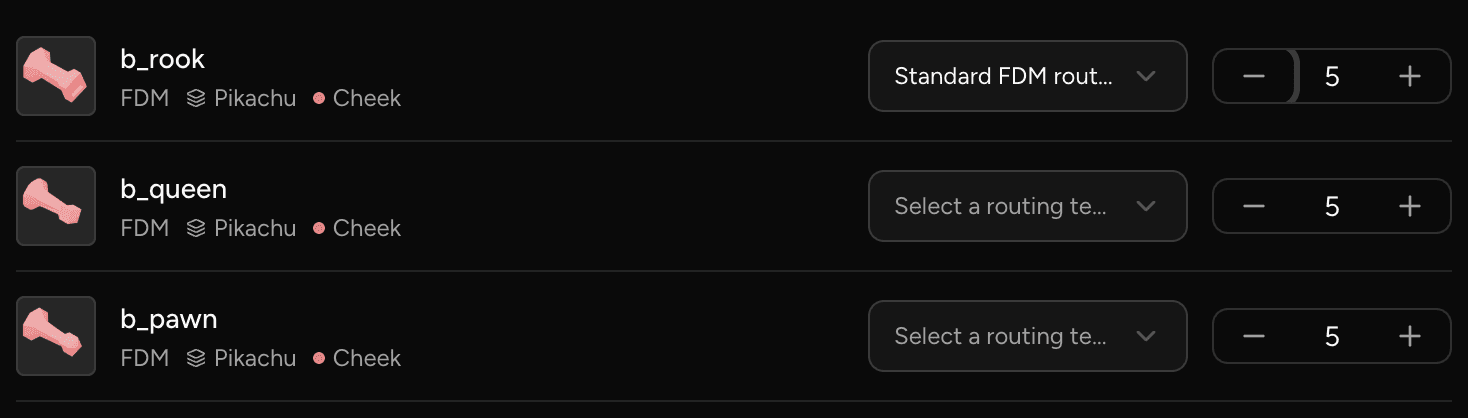
Which actions are blocked
Any action that creates a work order or schedules parts for production is blocked when the selected routing is not an approved template:
- Creating a work order from a part on the order Production tab with Create work order (+).
- Scheduling parts in the Create work orders dialog.
Editing a single run's routing is also blocked. While the setting is on, the dialog hides the edit icon for routing steps, and the work order card hides Edit downstream steps. An edited routing is never an approved template, so it never passes the check.
The Create work orders dialog checks every row before it creates anything. If any row fails the check, the whole request is rejected and no work order is created. Phasio shows one No approved routing template for {part} error per failing part, with an Open Routing action that opens the part specification. Fix those parts, or set their quantity to zero to leave them out, then click Schedule (N) again.
An order status automation that schedules parts for production skips the parts that fail the check and schedules the rest.
Unblock a part
A blocked part needs an approved routing template:
- Open the part specification and go to the routing templates section.
- Approve an existing template, or create and approve a new one.
- Set it as the default if you want it applied automatically on future work orders.
Once an approved template is in place and set as the default, the scheduling action succeeds. Setting a default is optional: you can also pick an approved template on each row.
Last updated on
Operations
Create, configure, reorder and archive the production operations that make up every routing, and set how parts are grouped and named at each one.
Routing examples
Two worked examples of a six-operation routing in Phasio, one for powder bed printing and one for FDM printing, with every operation setting.