Orders board
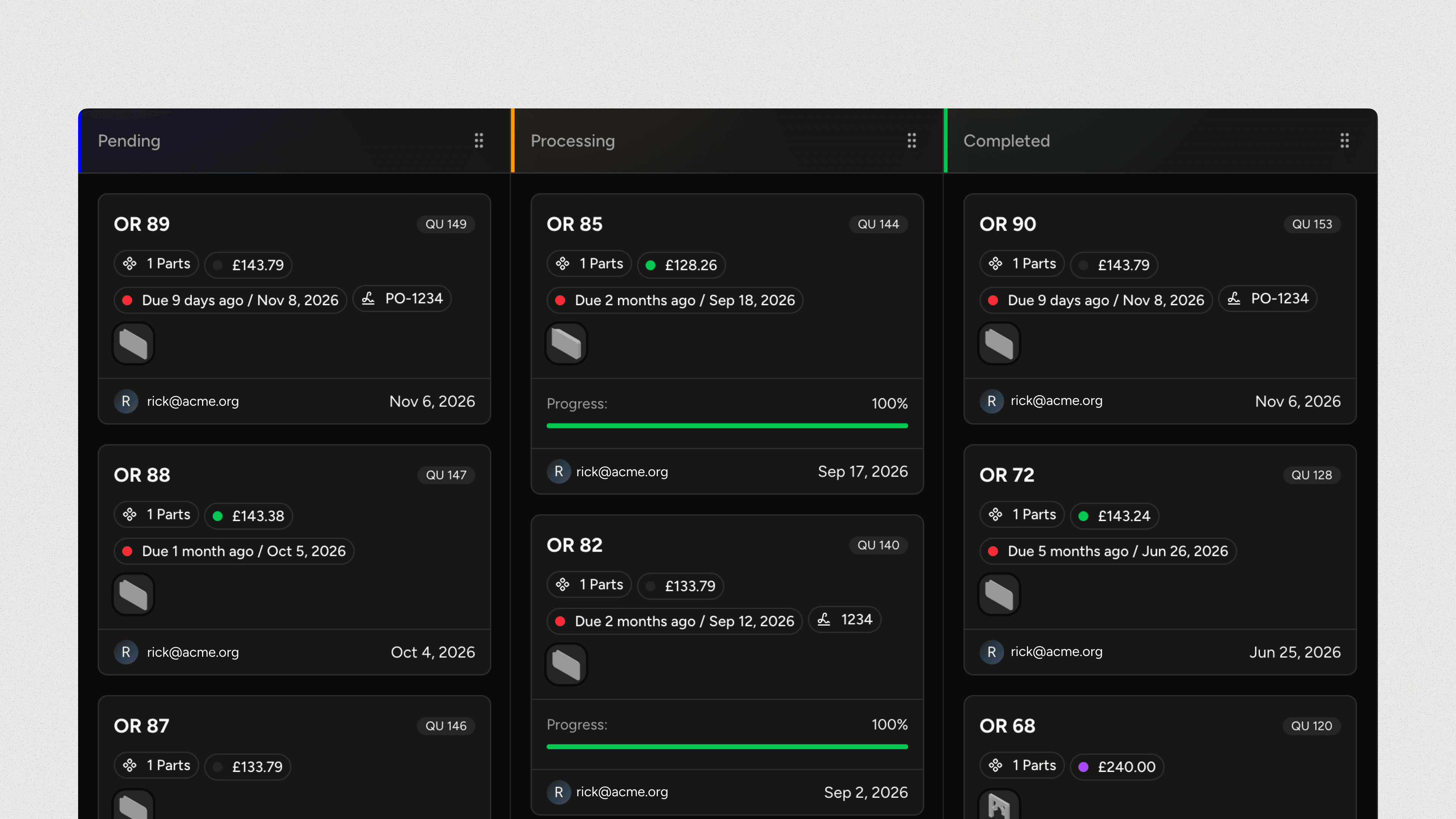
The board shows every order as a card in the column of its status, so your team can see and move work through each stage.
Overview
Each column on the board is one of your order statuses, shown in the colour you chose for it, so the whole team shares one view of where every order is. New workspaces start with Pending, Processing and Completed.
To reorder the columns, drag a column by the grip handle in its header. To rename, add or remove statuses, or change their automations and colours, see order statuses.
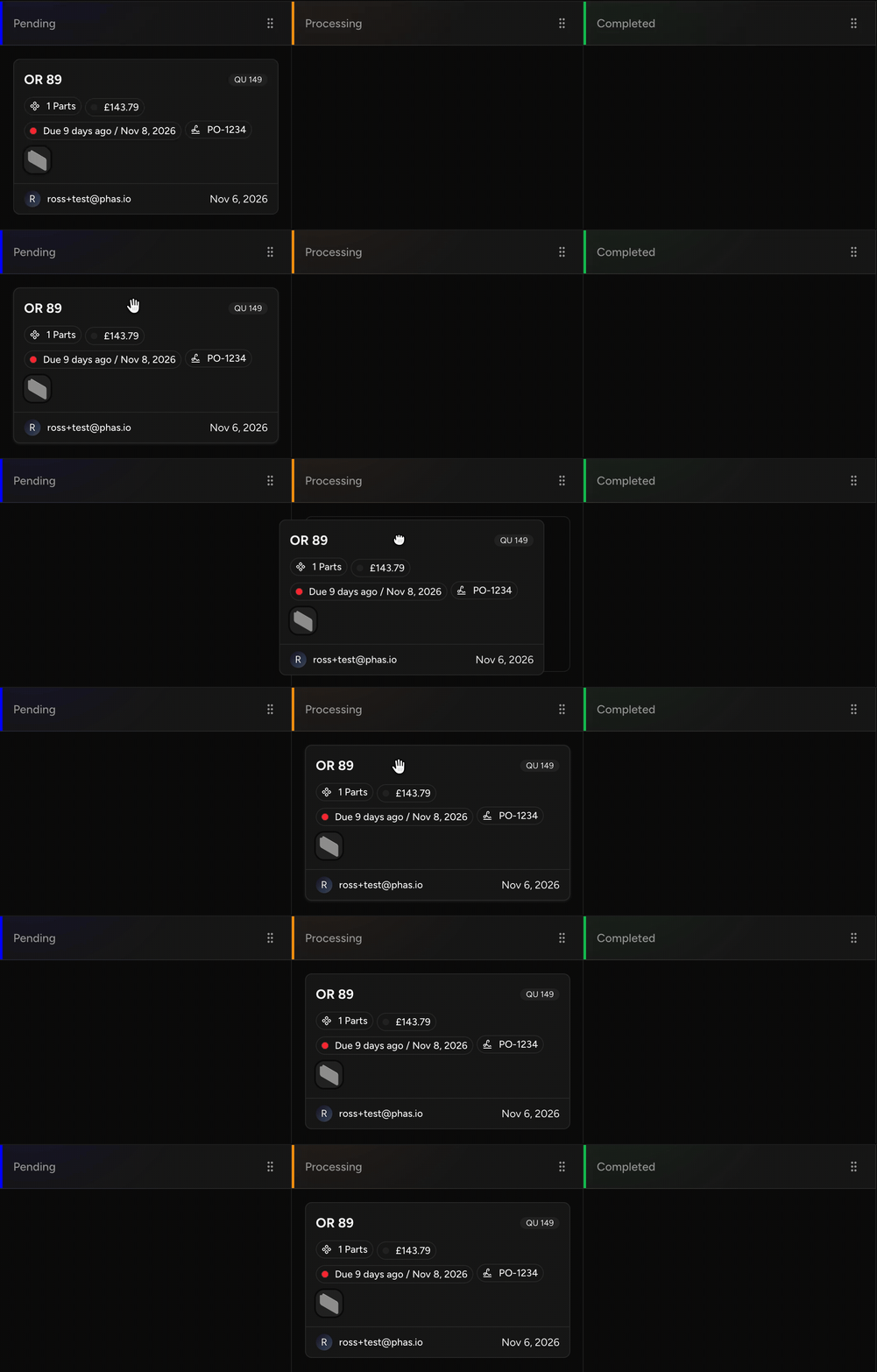
Update order status
Drag an order to another column to change its status. Moving an order into a status:
- Runs that status's automations, such as Notify customer of new status, Send order confirmation to customer or Send invoice to customer.
- Updates the status customers see on their Storefront orders.
Order details
Each order on the board displays:
- The order's custom reference, or its order or quote number
- The number of parts and their thumbnails
- The order value, with a dot coloured by payment status
- The dispatch date and how soon it's due, when one is set
- The purchase order number, when one is set
- Production progress, once parts are in production
- The customer and the date the order was created
Sort and filter
Use the toolbar above the board to:
- Sort orders by Last updated (the default), Created at or Dispatch by.
- Filter orders by currency, customer, affiliate, purchase order, created at, dispatch date and order value.
Open an order
Click an order to open it. Right-click an order and select Open in a new tab to keep the board open.
FAQ
Last updated on