Orders list
The list shows your orders in a table, so you can find orders, act on several at once and export them.
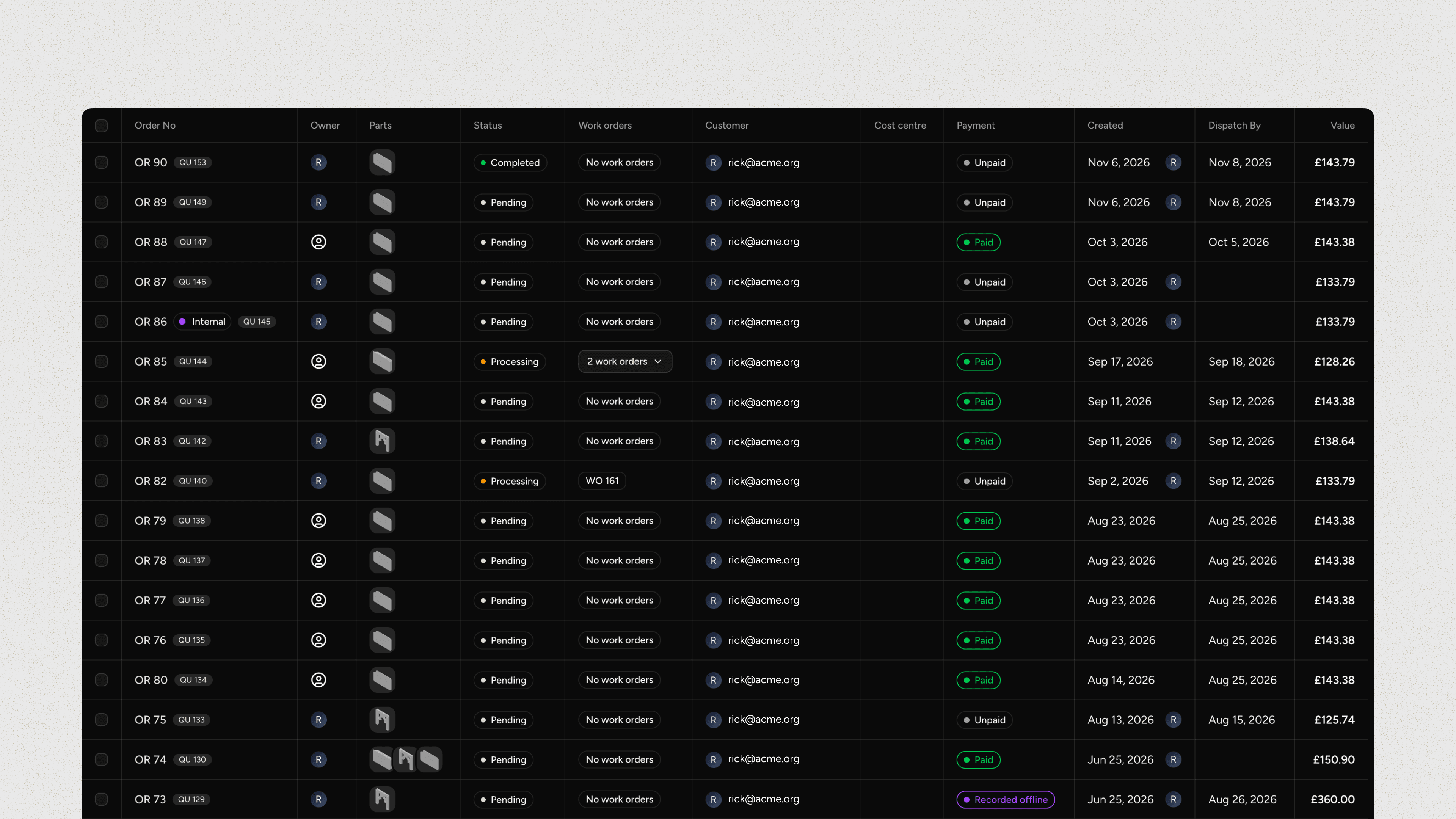
Overview
The list shows orders from newest to oldest, with each order's payment status, creation date and value. It also shows each order's work order details, so you can see which confirmed orders still need a work order. Internal orders booked to a cost centre show the cost centre.
Find orders
The Search input matches on order or quote number, PO number, payment provider ID, estimate, invoice or confirmation number, customer name, affiliate, and custom reference.
Use the Filter dropdown to filter by order value, owner, order status, currency, customer, affiliate, payment status, dispatch by, and more.
Quick actions
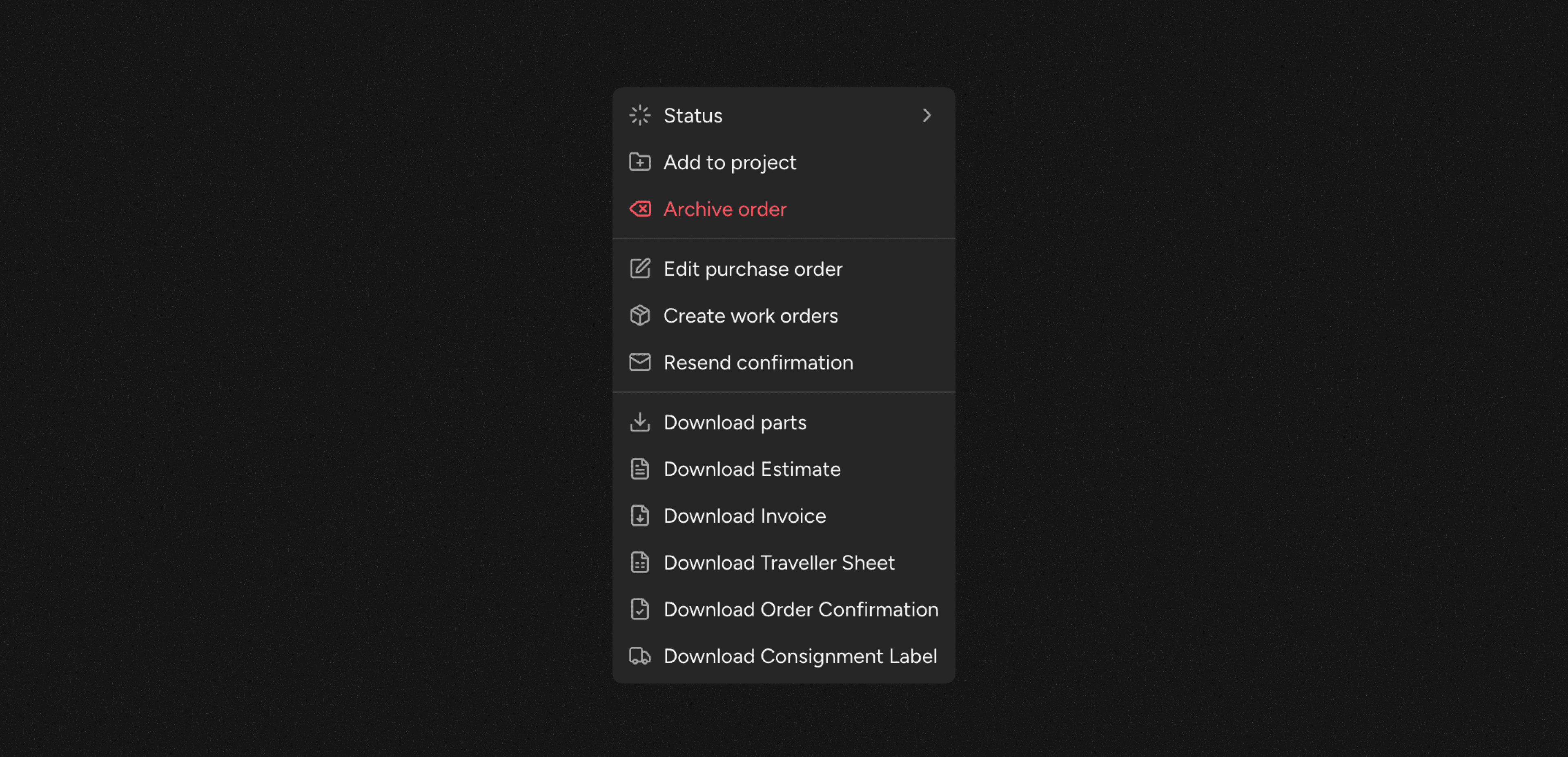
Right-click an order to perform any of the following quick actions from the context menu:
- Status: Move the order to another status
- Edit order: Open the order for editing
- Add to project: Add the order to a project
- Archive order: Archive the order and optionally send parts to scrap
- Unarchive: Restore the archived order
- Edit purchase order: Add or change the order's purchase order
- Create work orders: Schedule the order's parts into production
- Resend confirmation: Resends the order confirmation. Internal Only orders are skipped, because their customers are not notified.
- Downloads: Download the order's parts, estimate, invoice and more
Bulk actions
Select an order by using the checkbox on each row. To select every order on the page, select the checkbox in the header.
Right-click a selected order to act on the whole selection. Actions that apply to several orders show the number of selected orders next to their name. Right-clicking an order outside the selection acts on that order only.

Export orders
To export orders to Excel, click Export in the toolbar. If you have selected orders, the export includes only those orders. In the Export orders dialog:
- Choose a Time period.
- Optionally open More options. Here you can filter by customer, source and payment, search for orders, turn on Include archived, and choose the columns on the Main sheet and Item details tabs.
- Click Download Excel.
The export has separate subtotal, shipping, discount, minimum order top-up, net total and tax columns, and every price column states whether it includes tax, so the columns add up to the final price. It also includes the cost centre of internal orders.
Last updated on