Order statuses
Order statuses are the stages an order moves through, each a column on the Orders board that can notify the customer or send documents.
Overview
Every order sits in one status. You customise the statuses to match your own process, and each one is a column on the Orders board, shown in the colour you chose. Customers see the order's status, in that colour, in their Storefront order list and on the order details page.
New workspaces start with these statuses:
| Status | Type | Automations |
|---|---|---|
| Pending | STARTING | Notify customer of new status, Send order confirmation to customer |
| Processing | ACTIVE | Notify customer of new status, Send invoice to customer |
| Completed | ENDING | Notify customer of new status |
Create an order status
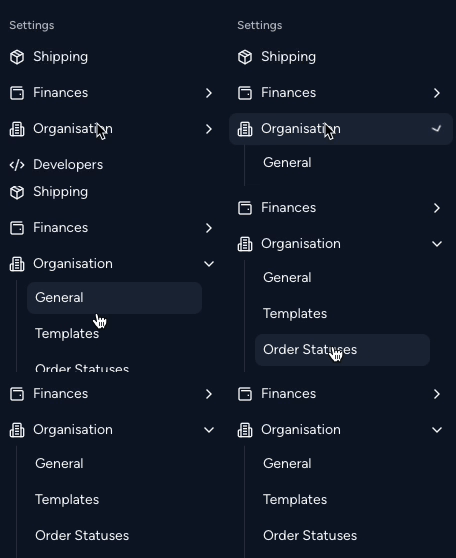
Open the user menu at the bottom of the main sidebar, choose Settings, then go to Workspace > Order Statuses:
- Click New Order Status under the Order Statuses header. The Add new status dialog opens.
- Name: Enter the status name as it will appear on the Board.
- Automations (optional): Click Add automation to choose actions that run when an order moves into this status. See Automations.
- Color (optional): Pick a colour for the status. It shows on the board and the calendar, and customers see it on their Storefront orders, so you can mark priority, production stage and exception states.
Once saved, the status appears as a column on the Board.
Automations
| Automation | What it does |
|---|---|
| Notify customer of new status | Sends the customer an update through their preferred communication method. |
| Send order confirmation to customer | Sends the order confirmation to the customer. |
| Send invoice to customer | Generates and sends a PDF invoice to the customer. Listed only when Invoice generation is on in Settings > Finances > Payments. |
Order confirmation and status update emails are controlled only by these automations, so you decide which stages send which emails. When Send customer notifications from Phasio is off in Settings > Workspace > General, these automations send nothing to customers. See Notifications.
Every status change also sends an ORDER_UPDATED webhook, so webhooks need no automation. See Webhooks.
Status types
| Type | Meaning | Sequence |
|---|---|---|
| STARTING | The first step in production, such as "Order Received". | 1 |
| ACTIVE | Any stage between STARTING and ENDING. | Between |
| ENDING | The final step in production, such as "Order Shipped". | n |
All new statuses are created as ACTIVE. To change the type, edit the status after you create it. The Sequence and Status fields appear only when you edit an existing status.
A project can only be completed when every order in it is in an ENDING status. See Projects.
Reorder, edit or delete a status
- Reorder: On the Board, drag a column by the grip handle in its header.
- Edit: In Settings > Workspace > Order Statuses, click the Edit (pencil) icon on the status's row.
- Delete: Click the Delete (trash) icon on the status's row. Phasio asks you to confirm.
Changes show on the Board straight away.
Last updated on