Orders calendar
Use the calendar to visualise orders by their expected dispatch date, and plan production around it.
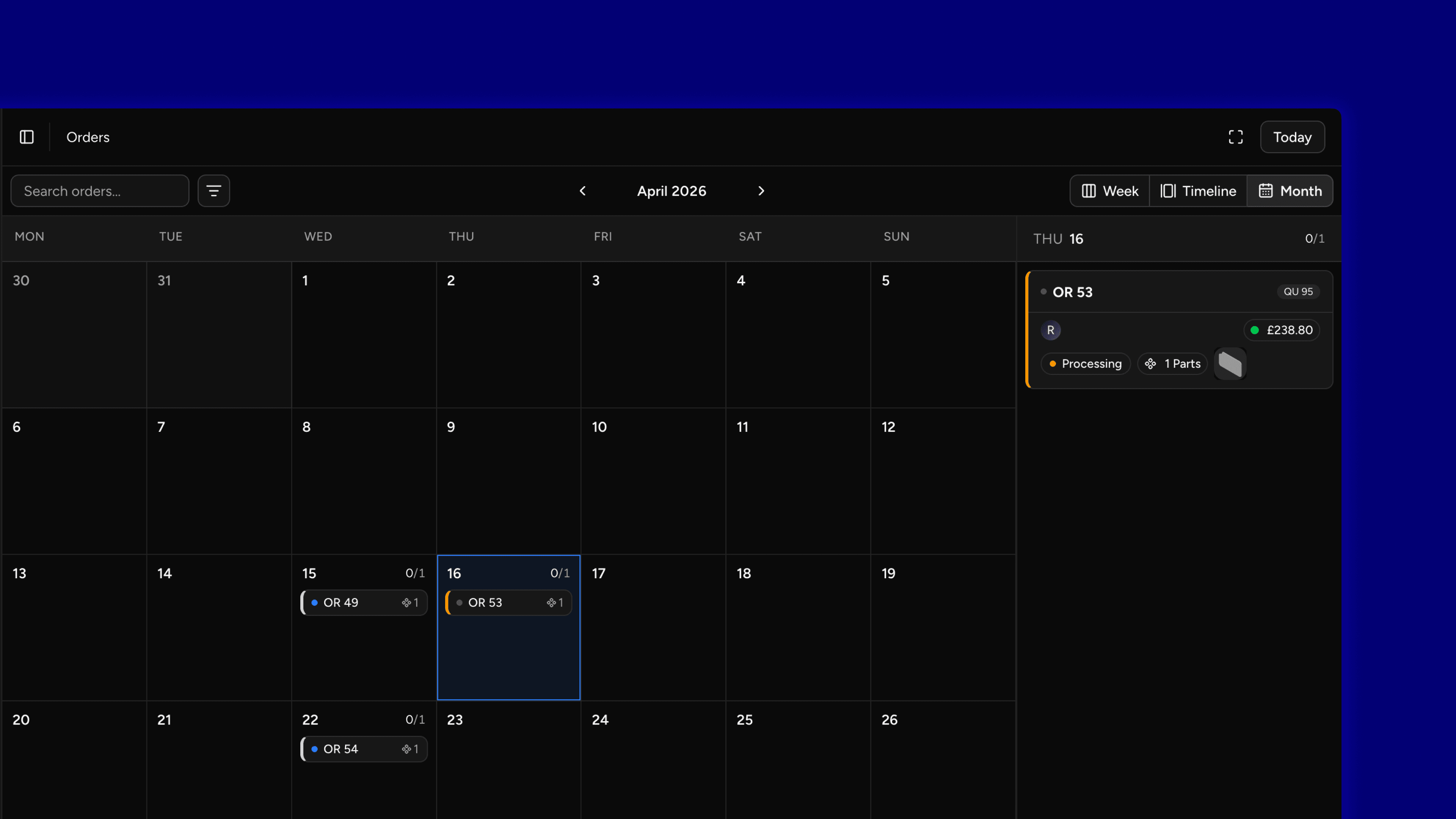
Overview
The calendar places each order on its expected dispatch date. Each card has a bar in the colour of the order's status and shows the order's reference or number, its customer, payment status and production progress.
Each day shows how many of its orders are complete, such as 2 of 5 complete, so you can spot days at risk.
Views
Switch views with the Week, Timeline and Month buttons in the top-right corner. The calendar remembers your prefeence the next time you open it.
- Week: One week, with a column per day. Click the Two weeks icon next to the view buttons to show two weeks
- Timeline: A scrolling strip of days, about five weeks either side of the selected day
- Month: The whole month in a grid
In Week and Timeline views, a strip of days runs along the top. Hover over a day to see how many orders are due, and click it to jump to that day.
Move around
- Use the arrows either side of the month name to go to the previous or next month.
- Click Today to return to the current day.
- In Week and Timeline views, click Collapse all to shrink every card to a single line, or Expand all to open them again. Click Collapse day in a day's column to collapse just that day.
- Click the Fullscreen icon to fill the screen, for example on a production floor display. The calendar moves to the next day at midnight, so a screen left open stays up-to-date.
Find orders
Use the Search input and the Filter dropdown to narrow the calendar's results. The filters are the same as on the Board, except the dispatch date filter, since the calendar's date range already does that job.
Open an order
Click an order to open it. Right-click an order and select Open in a new tab to keep the calendar open.
FAQ
Last updated on